Friday, 25 May 2012

Windows 7 Tips, Tricks and Secrets


PSR(Problem Steps Recorder):

Window 7 has a great inbuilt future called "PSR - Problem Steps Recorder" which help you to record problems caused by any program installed in you PC. As a PC guru you are followed by your friends and relatives or by others to make you to solve the irritating small PC software problems ;-( I know you are very frustrated by this because they even don't know how to describe their actual problem.
But Microsoft knew your pain, So they had came up with a good solution(PSR) by which you can ask your friend/relative/others to run this and send the generated report, So that you can solve their problem with ease.
Now lets see how to work with it, Just follow this simple steps.
Step #1: Click on "Start" and type "PSR" and press enter.Now press "Record"
Step #2: Now run the misbehaving application so that PSR records every thing like every click and key-press, take screen grabs, and package everything up into a single zipped MHTML file.
That's it you are all set to go and solve the problem.

Start Up Repair:

One time or other every body faces this start up problem for a reason or for no-reason, So its good to create a system repair disc straight away in case you run into problems booting the OS later on. Just follow this simple steps.
Step #1: Click Start > Maintenance > Create a System Repair Disc
Step #2: Now let windows 7 create a Emergency boot disk.
If you get to worst case this disk will help you to boot.

Find out Hidden wallpapers and themes:

We all knew that while windows 7 is been installed it will ask for your country, Time Zone etc.., Now based on your responses windows 7 will automatically selects which wallpapers to install by default.
Suppose you had selected your country as India, So that windows seven will install some wallpapers which are related to India.
To unlock all the wallpapers just follow this simple steps.
Step #1: Click on Start and type "C:\Windows\Globalization\MCT" in the search box.
Step #2: Now a window will open with some sub-folders "MCT-AU, MCT-CA, MCT-GB, MCT-US, and MCT-ZA" in which you can select your hidden wallpapers
Here AU, CA, GB, US, and ZA refers to  Australia, Canada, Great Britain, United States and South Africa.

Import file over a network to Windows Live MovieMaker:
In windows 7 by default Windows Live MovieMaker will not give you access to import files over a network, but a simple Registry tweak will make this happen. Just follow this steps.
Step #1: Run REGEDIT
Step #2: Now navigate to HKEY_CURRENT_USER\Software\Microsoft\Windows Live\Movie Maker,
Step #3: Now add a DWORD value called AllowNetworkFiles and set it to 1 to add network support.
That's it your done.

Custom Power Switch:
By default you see the "ShutDown" button on start button. But you are the man who reboots your pc several times a day then you can change "ShutDown" to "ReStart" in a few click by fallowing this simple steps.
Step #1: Right - Click on Start button.
Step #2: Choose Properties and set the 'Power boot action' to 'Restart' to make it happen.
That's it your done!!


Thanks & Regards,

"Remember Me When You Raise Your Hand For Dua"
Raheel Ahmed Khan
System Engineer
send2raheel@yahoo.com
send2raheel@engineer.com
sirraheel@gmail.com
send2raheel (skype id)

My Blog Spot
http://raheel-mydreamz.blogspot.com/
http://raheeldreamz.wordpress.com/

My Face book pages
http://www.facebook.com/pages/My-Dreamz-Rebiuld-our-nation/176215539101271    @[176215539101271:0]    
http://www.facebook.com/pages/Beauty-of-islam/223983470988333?sk=wall        @[223983470988333:0]               
http://www.facebook.com/pages/Health-is-wealth/289486761065829?sk=wall        @[289486761065829:0]

Wednesday, 23 May 2012

7 secrets to PC Heaven…


"Artist's" impression of what your laptop could look like after following the 7 secrets to PC heavenGot a couple of minutes? Sitting comfortably? Good, then I’ll begin.

If you use your laptop every day, like most of us, chances are it’s going to start to degrade as the sands of time swirl by. So, we’ve laid down the seven golden rules to keep your PC on the straight and narrow and tried to recommend some decent free programs to help you along the way.

So here are our seven pearls of technical wisdom to help keep your laptop in shape:

1) Stay safe and secure online

Make sure your PC is protected with adequate security software: Norton Internet Security if you can afford it or free anti-virus and firewall software if you can’t. Add Threatfire and Malwarebytes Anti-Malware for additional protection.

2) Modify your online behaviour

The best way to avoid infection is to make sure you don’t put yourself at risk. Our colleagues at Tech Radar have noted down a few tips and tricks of their own to help you with this.

3) Think twice before installing programs

Don’t install programs for the sake of it – ask yourself if you really need them and check if a ‘portable’ version is available. This can be run directly from your data drive or USB flash drive without cluttering up Windows. Start your search for portable versions of your favourite apps at Portableapps, but also check the programs own site.

4) Uninstall more cleanly

Installing and removing programs quickly builds up clutter and detritus. Use Revo Uninstaller instead of the Program and Features Control Panel to remove programs from your PC – this scans your computer for leftover files and Registry entries after the program is uninstalled, enabling you to perform a cleaner uninstall.

5) Stay up to date with drivers and updates

Make sure Automatic Updates is on (and choose Microsoft Update if you have Microsoft Office installed), and regularly check for program and driver updates – DriverEasy can simplify the process of updating drivers, while File Hippo’s Update Checker can do the same for selected software.

6) Start looking after your drive

Get into the habit of running the disk-check – click Start, then My Computer, right click your C drive, choose Properties Tools tab and click Check Now. Tick both boxes and click OK, scheduling the check for the next time you restart. Windows XP users should also remember to run Disk Defragmenter every month. A useful tool for keeping an eye on your drive’s physical health is CrystalDiskInfo.

7) Use a regular clean-up tool

Install something like CCleaner to periodically clear out redundant files from your hard drive – avoid the Registry cleaning tools though, as these could cause irreparable damage to your Windows installation. Instead, check out Free Registry Defrag for compacting and de-fraging your Registry.


Thanks & Regards,

"Remember Me When You Raise Your Hand For Dua"
Raheel Ahmed Khan
System Engineer
send2raheel@yahoo.com
send2raheel@engineer.com
sirraheel@gmail.com
send2raheel (skype id)

My Blog Spot
http://raheel-mydreamz.blogspot.com/
http://raheeldreamz.wordpress.com/

My Face book pages
http://www.facebook.com/pages/My-Dreamz-Rebiuld-our-nation/176215539101271    @[176215539101271:0]    
http://www.facebook.com/pages/Beauty-of-islam/223983470988333?sk=wall        @[223983470988333:0]               
http://www.facebook.com/pages/Health-is-wealth/289486761065829?sk=wall        @[289486761065829:0]

Tuesday, 22 May 2012

17 Useful Tips To Extend Your Laptop’s Battery Life

It’s no secret that as the usage of a laptop increases, its battery life diminishes. While there has been some development in the type of batteries, battery life is something which users continue to complain about.
Obviously, the type of operating system has a lot to do with the battery performance. The newer operating systems, like Windows 7 are rich in graphics and hence consume more battery.
This article talks about some useful tips and techniques to extend your Windows laptop’s battery life. Mind you, it does mean doing away with certain nice appearance related features. But if you are a performance freak, it shouldn’t bother you.
The tips are written with Windows Vista/7 in mind but most of them are general techniques and should work in all kinds of laptops.

1. Decrease the screen brightness

More the screen brightness, more the battery consumed by your laptop. To decrease it, click on the battery icon on the system tray and select “More power options”.
extend laptop battery life power options
Power options window will open, move the screen brightness (given at the bottom) slider to left. Note that  working with less screen brightness is also good for your eyes.
screen brightness

2. Avoid using screensavers

You left your PC for sometime without any activity. Screensaver starts playing after some time. It consumes the battery so it is better to turn it off.
Right click on your desktop and select Personalize.
personalize desktop
Now on the bottom right, click on “Screen Saver”.
screen saver1
Click on Screen Saver drop down and select “None”. Click OK.
screen saver

3. Defrag from time to time

Defragmentation makes your hard drive more efficient which results in a fast hard drive and hence less battery consumption. You can defrag your hard disk using Windows inbuilt Disk defragmenter or using external tool such as Defraggler.
To use Windows Disk Defragmenter, click on “Start” button and type “Disk defragmenter” (without quotes) in the search box and press Enter key.
disk defragmenter
Disk defragmenter window will appear. Now click on “Configure schedule” to schedule the defragmentation process.
schedule defragmenter
Now select the frequency, day, time and disks from the given drop downs and press OK.
disk defragmenter schedule

4. Disable unnecessary startup applications

Some applications unnecessarily get added on the startup menu thereby increasing system’s booting time. For example programs like Adobe reader, Zune, iTunes and Google desktop search start by default and keep running in the background..
You can use Msconfig to stop unnecessary Windows programs from starting up automatically.

5. Remove external USB devices

USB devices are known to drain the battery. If any USB device ( external hard drive, pen drive, mouse), memory card, iPod or iPhone is connected and you are not using it,  then remove it.
eject external drive

6. Add more RAM

Windows comes with virtual memory feature in which it uses hard disk memory when it runs out of RAM. This feature ultimately results in usage of hard disk and load on laptop battery. To avoid this you should increase your RAM according to your requirement.

7. Avoid running CD/DVD

If you are running your laptop on battery then avoid using CD/DVD because it draws more battery power. It’s better to rip DVD and then watch it when the laptop’s on battery.

8. Sleep is good, but hibernation is better

Standby or sleep state which is also known as power saving state is a nice feature which lets you bring your computer to idle state. You can quickly resume your work anytime by pressing keys of your computer. It uses a small amount of power while its in the sleep state.
It is advisable to use hibernate mode instead of sleep because sleep consumes slight power in comparison to hibernate which consumes no power, saves all your work and resumes from where you stopped it.

9. Optimize the power option

Power option in Windows has different settings to save battery life. To go to power option, click on battery icon in the system tray and select power option.
power option
Now click on “Change power settings”.
power option settings
Here you can decide when your computer will dim the display or when it turns off the display while it is on battery. Also you can decide the time after which it will go to the sleep state.
You can also make use of “Advanced power settings”. Click on the link given below (see the screenshot).
windows power plan
On advanced power window you will find many options to optimize your laptop for a better battery life. For example you can pause the slide show when it is running on battery.
Note: It is advisable not to play with settings if you don’t know what you are doing. It might result in unnecessary issues with your laptop.
advance power options

10. Keep the laptop at a cool place

This is a no-brainer. If the laptop’s kept in a room with low temperature, its fan will have to do less work to dissipate the heat. That’ll put less load on the battery and hence prolong its life.

11. Screen resolution

Low screen resolution consumes less battery in comparison to high screen resolution. To change the resolution right click on desktop and select “Screen resolution”. Windows Vista users can find this option under “Personalize”.
screen resolution
Now move the slider down to decrease the screen resolution. You can also choose from the drop down option.
screen resolution

12. Disable Aero feature

Aero feature is responsible for translucent glass design and attractive window colors. Turning it off saves your battery resources.  Right click on your desktop and select “Personalize”. Now click on “Window color” at the bottom.
windows color
Uncheck the box next to “Enable transparency”.
disable aero

13. Switch off Wireless

If you are not connected with any wireless network then it is better to switch off wireless. Most of the laptops have a wireless switch that let you quickly turn it off.

14. Adjust Visual Effects

Visual effects also consume battery power so it is a good idea to switch it to best performance setting. Type “adjust performance” and press “Enter”.
adjust performance
In performance options window, go to “Visual Effects” tab. Now select the option “Adjust for best performance”. It will turn off all the effects that enhance the visual performance of your PC.
visual effects windows

15. Disable search Index

It’s better idea to disable search index feature in Windows. You can use programs like Ultrasearch as its alternative.
Click on “Start” button and type indexing options in the search box. Press “Enter” key.
indexing option
Now click on Modify.
indexing option1
Here you have to uncheck all the given boxes so that Windows can’t perform extra work to index all the files at these locations.
index location windows

16. Turn off Scheduled tasks

If you have scheduled a task on your laptop to start automatically at a specific time then you have to take care that your task won’t occur at a time when your laptop is running on battery.
To see the scheduled tasks and time when they occur, click on Start button and type Task scheduler in the search box. Press Enter. It will open the task scheduler window.

17. Get your laptop’s vent cleaned

Dust causes your laptop vents to close which results in blockage of area from where the heat is released. It causes more heat and more work load on fan. To avoid it, get them cleaned at frequent intervals.
Note: Don’t try to open the screws yourself and cleaning it. Take it to the service centre and they will take better care of it.
So those were some tips that could help you extend your laptop’s battery life. Let us know what you think of them, and share other tips, that we might have missed, in the comments.
Of course we don’t recommend following each and every tip mentioned because it does involve compromising on a lot of visual and other features. So pick and choose, and follow the steps which don’t affect your work.


Thanks & Regards,

"Remember Me When You Raise Your Hand For Dua"
Raheel Ahmed Khan
System Engineer
send2raheel@yahoo.com
send2raheel@engineer.com
sirraheel@gmail.com
send2raheel (skype id)

My Blog Spot
http://raheel-mydreamz.blogspot.com/
http://raheeldreamz.wordpress.com/

My Face book pages
http://www.facebook.com/pages/My-Dreamz-Rebiuld-our-nation/176215539101271    @[176215539101271:0]    
http://www.facebook.com/pages/Beauty-of-islam/223983470988333?sk=wall        @[223983470988333:0]               
http://www.facebook.com/pages/Health-is-wealth/289486761065829?sk=wall        @[289486761065829:0]

Monday, 14 May 2012

10 New HTML5 Tags You Need To Know About


HTML5 brings a host of new elements and attributes to allow developers to make their documents more easily understood by other systems (especially search engines!), display data more uniquely, and take on some of the load that has required complex JavaScript or browser plug-ins like Flash and Silverlight to handle. Here are 10 new items in HTML5 that will make it easier for you to write your Web sites.

1: <video> and <audio>

One of the biggest uses for Flash, Silverlight, and similar technologies is to get a multimedia item to play. With HTML5 supporting the new video and audio controls, those technologies are now relegated to being used for fallback status. The browser can now natively display the controls, and the content can be manipulated through JavaScript. Don’t let the codec confusion scare you away. You can specify multiple sources for content, so you can make sure that your multimedia will play regardless of what codecs the user’s browser supports.

2: <input> type attributes

The venerable <input> element now has a type attribute, and browsers do some pretty slick things depending on its value. For example, set type to “datetime” and browsers can show calendar/clock controls to pick the right time, a trick that used to require JavaScript. There is a wide variety of type attributes, and learning them (and the additional attributes that go with some of them) will eliminate the need for a lot of JavaScript work.

3: <canvas>

The <canvas> tag gives HTML a bitmapped surface to work with, much like what you would use with GDI+ or the .NET Image object. While <canvas> isn’t perfect (layers need to be replicated by using multiple canvas objects stacked on top of each other, for example), it is a great way to build charts and graphs, which have been a traditional weak spot in HTML, as well as custom graphics. And that is just a start!

4: <header> and <footer>

The <header> and <footer> tags are two of the new semantic tags available. These two tags do not get you anything above and beyond <div> for the actual display. But they will reap long-term rewards for your search engine efforts, since the search engines will be able to tell the difference between “content” and things that are important to the user but that aren’t the actual content.

5: <article> and <section>

The <article> and <section> tags are two more semantic tags that will boost your search engine visibility. Articles can be composed of multiple sections, and a section can have multiple articles. Confusing? Not really. An article represents a full block of content, and a section is a piece of a bigger whole. For example, if you are looking at a blog, the front page might have a section for the listing of all the posts, and each post would be an article with a section for the actual post and another for comments.

6: <output>

The new <output> tag is unique, in that it expects its content to be generated dynamically with JavaScript. It has a value attribute, which can be manipulated through the DOM with JavaScript to change what is displayed on the screen. This is much more convenient than the current ways of doing things.

7: <details>

It seems like every Web site needs to have an expanding/collapsing block of text. While this is easy enough to do with JavaScript or server-side code, the <details> tag makes it even easier. It does exactly what we’ve all been doing for years now: makes a simple block that expands and collapses the content when the header is clicked. The <details> tag does not have widespread support yet, but it will soon.

8: <figure> and <figcaption>

<figure> is a container for content (typically images, but it can be anything), and <figcaption> (which gets put inside the <figure> tag) provides a caption or subtitle for the contents of the <figure> tag. For example, you could have four images representing charts of sales growth within a <figure> tag, and a <figcaption> with text like “Year-to-year sales growth, 1989 - 1993.” The images would be shown next to each other with the text running below all four.

9: <progress>and <meter>

<progress> and <meter> are similar. You use <progress> for a task or a “measure how complete something is” scenario. It also has an indeterminate mode for something that has an unknown duration (like searching a database). The <meter> tag is for gauges and measurements of value (thermometers, quantity used, etc.). While they may look alike on the screen in many cases, they do have different semantic meanings.

10: <datalist>

The <datalist> tag acts like a combo box, where the system provides a pre-made list of suggestions, but users are free to type in their own input as well. There are tons of possible uses for this, such as a search box pre-populated with items based on the user’s history. This is another one of those things that currently requires a bunch of JavaScript (or JavaScript libraries) to handle but that can be done natively with HTML5.

Thanks & Regards,

"Remember Me When You Raise Your Hand For Dua"
Raheel Ahmed Khan
System Engineer
send2raheel@yahoo.com
send2raheel@engineer.com
sirraheel@gmail.com
send2raheel (skype id)

My Blog Spot
http://raheel-mydreamz.blogspot.com/
http://raheeldreamz.wordpress.com/

My Face book pages
http://www.facebook.com/pages/My-Dreamz-Rebiuld-our-nation/176215539101271    @[176215539101271:0]    
http://www.facebook.com/pages/Beauty-of-islam/223983470988333?sk=wall        @[223983470988333:0]               
http://www.facebook.com/pages/Health-is-wealth/289486761065829?sk=wall        @[289486761065829:0

Saturday, 12 May 2012

Network Security


The whole meaning of networking is to share programs, but granting others to access a computer device reveals an open window for those with foul motives, too. In the early days networks were quite secure because they were closed in systems, and to do any harm you had to get physical access to a server wired to the LAN. Remote access and Internet possibility to hook up has changed that. Broader availableness and less cost of broadband (DSL and cable) connections means that even home computers remain linked up to the Internet round-the-clock, which add the chances for hackers to gain access to computers.

Computer operating systems were originally planned for stand-alone computers only, not networked ones, and security was not an issue. When computer networking became known, applications and operating systems concentrated on easy accessibility rather than security. Because of this earlier focus on accessibility; security are now retrofitted into a lot of hardware systems. Modern operating systems such as Windows XP are planned with security in mind, but they still have to operate using conventional networking protocols, which can result in security problems. For business computer networks, the key is to hit a balance so that employees are not annoyed by security measures, while trying to maintain a level of protection that will keep unauthorized individuals from getting access. Even the best free antivirus software needs to work in conjunction with allowing employees to have some access.

Security versus access. The users want easy access to network resources. Administrators want to remain the network secure. These two goals are at odds, because access and security are always on conflicting ends of the scale; the more you have of one, the less you have of the other.
For business computer networks, the key is to hit a balance so that employees are not annoyed by security measures, while trying to maintain a level of protection that will keep unauthorized individuals from getting access.

Internal network security threats are those that come from within the organization, as opposed to those that come through the Internet. Internal threats include employees who on purpose attempt to nick data or bring in viruses or attacks on the computer network. Other internal threats are posed by outside employees (contract workers, janitorial services and people posing as utility company employees) who have physical access to the LAN computers. Though, many internal threats are unintended. Employees may install or use their own software or hardware for a private purpose, unaware that it poses a security threat to their computers and the complete network.

External security threats are those that come from outside the LAN, typically from the Internet. These threats are the ones we usually think of when we talk about hackers and computer network attacks. Such people can make use of flaws and characteristics of computer operating systems and software applications. They take advantage of the way various network communications protocols work to do a range of things, including the following: Enter a system and access (read, copy, change or delete) its data. Break down a system and harm or destroy operating system and application files so they do not work anymore. Install virus and worms that can spread to other systems across the LAN. Or use the system to start attacks against other systems or other network.


Thanks & Regards,

"Remember Me When You Raise Your Hand For Dua"
Raheel Ahmed Khan
System Engineer
send2raheel@yahoo.com
send2raheel@engineer.com
sirraheel@gmail.com
send2raheel (skype id)

My Blog Spot
http://raheel-mydreamz.blogspot.com/
http://raheeldreamz.wordpress.com/

My Face book pages
http://www.facebook.com/pages/My-Dreamz-Rebiuld-our-nation/176215539101271    @[176215539101271:0]   
http://www.facebook.com/pages/Beauty-of-islam/223983470988333?sk=wall              @[223983470988333:0]              
http://www.facebook.com/pages/Health-is-wealth/289486761065829?sk=wall             @[289486761065829:0]
 

Friday, 11 May 2012

Switching Careers to be Happier!


Start of a career is the beginning of a new life; it could be very fruitful, you may find absolutely unexpected yet amazing opportunities. And it could be as frustrating as hell. Well, it all depends on your career choice! Choosing the right career is as important as choosing the right life partner, but switching careers is far easier! A career would most probably mean a drastic 9 to 5 job. So it is very important to have the right career as you are going to spend most of your life with it. A bad day at office might trigger the thought of resigning and doing a different sort of job. BUT this is not to be an impulsive decision because it is a very important step and can change your life significantly.

When you start thinking about changing your career, be sure that you are in a rational state of mind. It is very important to think carefully and weigh all the pros and cons regarding the decision. Think about all the issues that matter and those that do not! It would be perfect to visit a Career counselor, but at the end you are the one who has to make the decision, so it is for you to be really sure.

Consider the following points while making up your mind:


1. How do you Feel about your Current Job?

Do you feel like getting out of your bed on Monday mornings, excited about the work and the challenges you might face as the week progresses? Or, you dread the moment when your clock starts beating the alarm and puts an end to the most amazing days of the week? The Monday mornings say it all! How does your time pass at work? Does it “fly” or is it draggy for most of the time?

Do you think your current career has done some good to you? Is there any improvement on personal or professional level? Or, has it somehow damaged your knowledge or intellect? What about the amazing abilities and talents you are blessed with? Can you make a good use of them, or are they rusting?

Where do you see yourself in the future with your current job? Do you think that your current job can make a difference to your life? Can it bring you success or bliss or peace of mind? Whenever the thought of changing you career pops into your mind, ask all these questions to yourself and you will know your way!

Expectations from Life

What do you want to get from your life? The answer to this question is very important while deciding about the career path. Do you want to excel in whatever you do or a mediocre life is fine with you?

Some people just want to earn money and a good amount of money. There is nothing wrong with it. One might fancy traveling more than a dream job, and the money earned from a relatively boring but a well paid job could be spent on a vacation in Europe. Ok, absolutely fine, if that’s what you want to get out of life.

Some people want to do what they believe in and find interesting, and money is of secondary importance to them. They want to use their skills to the best and not waste them doing a job that does not need those skills. They may not be rich but content and satisfied.

Some people think the most important thing in life is to be successful, no matter what path is being followed.


2. What Exactly is Bothering you?

Is it a boring job, a personal problem, a hectic schedule or something else? Everything we do in life is interrelated, so it would not be news if troubles in your personal life bring stress to your professional life.

Your Pocket is a problem:

Money plays an important role in choosing careers, and they often become the reason for the thought of career change. Some careers pay more than the others, which is a fact. If you feel money is an important issue and you can’t find a way without it, changing the career is a good idea!

Stresses from Personal Life:

A complicated situation in personal life can leave us disoriented for days. It can possibly affect the bliss in everything we do. If a fight with your partner makes you mundane, don’t worry. As soon as this crisis in your personal life is over, you will start liking your job again.

A Crisis in the Office:

We, human beings, are sensitive creatures and we start owning the company we work for. A crisis at work could leave people perplexed and they might start thinking that it is of no use working in this field. If the thought of career switching is the outcome of such circumstances, stick to your company and stay where you are, because it is just a phase which will go away with time. Things will eventually get back to normal as they once were.

Being Unappreciated and Undervalued:

If you have worked very hard and you see others take the rewards for your work, the situation definitely hurts. Moreover, if you were expecting a promotion and it was given to a relatively incompetent person, don’t expect things to improve in the future either. You need a change! But, this is not a call for career change; just get a new job where your work is valued.

Talent being Wasted:

If you feel you are an extraordinary teacher but you are stuck in a tedious marketing job and your talent is being wasted, you should definitely leave your dull job and become a teacher. Talent with a lot of hard work could be very rewarding and it certainly brings peace of mind.

A Blow to your Values:

Situations may arise where things might not be according to your moral ethics, or in the worst case scenario, they might be very alarming. Corruption at the company may displease you or a low moral gesture of the boss might be upsetting! In such circumstances, if you are good at what you do, leave the office, but try to find a job related to your field!


3. Finding a New Career Closely Related to your Field

Changing the career is not very hard; however, sometimes it might demand much effort. A Software Engineer might find teaching fun, and he can always become a teacher in a College and teach Computer science! That’s not very hard to do.

It is not always financially feasible to earn through painting, so why not become an Art Curator at a well established firm. You can earn well and be an Artist at the same time.


4. Going back to School

If you have decided to change your career altogether, you must be prepared for the challenges that lie ahead. It is sure not going to be easy, but if it is what your heart lies in, the effort will be worthwhile at the end. Around the world, people make mistakes and they are not afraid to correct them. I have seen smart people studying Economics in the undergrad, working in the field for a while, not finding it interesting and going back to school to get a journalism degree and finally becoming wonderful writers! Somebody I know went back to school to get a Doctorate in Psychology, after working with Computers for a decade, in a relatively ripe age! And, people in the world change their minds, switch careers, and do what they want! So, going back to school is pretty normal. It is done in the past and will be done in the future; so, do not be shy or afraid to become a student again! The opinion of people DOESN’T matter!


5. Never too old to make a Change

Life is lived only once, so live it to the fullest! Don’t be afraid of change. Change is what actually improves a person and makes him what he is meant to be! And, age is a mere digit. It is about how you feel regarding yourself. If you feel like going for a change, go for it. It will require hard work and sheer effort, but you will feel happy in the end.


Life is about experimenting, making mistakes and correcting them! It is your time to do so!


Thanks & Regards,

"Remember Me When You Raise Your Hand For Dua"
Raheel Ahmed Khan
System Engineer
send2raheel@yahoo.com
send2raheel@engineer.com
sirraheel@gmail.com
send2raheel (skype id)

My Blog Spot
http://raheel-mydreamz.blogspot.com/
http://raheeldreamz.wordpress.com/

My Face book pages
http://www.facebook.com/pages/My-Dreamz-Rebiuld-our-nation/176215539101271    @[176215539101271:0]    
http://www.facebook.com/pages/Beauty-of-islam/223983470988333?sk=wall        @[223983470988333:0]               
http://www.facebook.com/pages/Health-is-wealth/289486761065829?sk=wall        @[289486761065829:0]

Thursday, 10 May 2012

Windows 8 Secrets: WinRT, the Windows Runtime


Windows 8 Developer Preview was released last fall. And not coincidentally, this was the fourth time in a row I spoke exclusively about Windows 8: People are fascinated by--and scared by--Microsoft's next operating system in ways they haven't been since Longhorn or, perhaps, Windows 95. It's something that I even I need to keep in the back of my mind since of course I have my own doubts, most of which are directly related to Microsoft's refusal to speak clearly about its plans.
That said, the groups I speak to are largely made up of very technical people with a business focus, so they have specific concerns about Windows 8, as well as specific kinds of concerns. Still, many of their questions are generally interesting even to non-technical people. So I figured I could address some of these questions in a series of articles about Windows 8 that will serve as background for the material I'm preparing for the book Windows 8 Secrets.
First up is the new Windows Runtime, or WinRT, since this forms the core of the new operating system and is, perhaps, the centrally most confusing concept in Windows 8 thanks to its position, or relationship, with the Start screen and Metro-style apps, and, of course, the classic Windows desktop and those applications as well. 
Note: This is a guide for end users, not developers or Windows internals experts. The goal here is to be accurate conceptually, and it's likely that there are some technical omissions or shortcuts in this article, given the nature of the topic. While I'm not hugely concerned about that sort of thing, I am interested in any errors you do find. So do let me know.
It's also worth noting that this is one area where Microsoft has been very forthcoming. We criticize them for silence, but with WinRT, the company has been transparent, though of course the topic is complex and confusing.
OK, let's dive in.
As a modern operating system, Windows has, of course, always had a runtime engine, an environment in which native applications run. One of these native applications is very special, since it provides the interface with which users interact with that runtime and environment; that application is called the shell. In the Windows 3.x days, Program Manager was the Windows shell. But that changed in Windows 95 to Windows Explorer, a situation that continued through the most recent Windows version, Windows 7.
In Windows 8, the Explorer shell is being replaced by the Start screen. But this isn't just a surface change, and the Start screen isn't "a thing on a thing." Instead, the Start screen, as the new Windows shell, is the visual representation of a new runtime engine which in this case is simply called the Windows Runtime, or WinRT for short.
And the Explorer desktop, interestingly, is essentially an app, or at least a separate environment, that runs alongside the new shell. One might conceptually (though not technically) compare this to the situation with MS-DOS and Explorer in Windows 9x: Both existed, both ran next to each other for all intents and purposes. And both had various tendrils into the other such that, for example, Explorer and the Windows 9x runtime actually relied on DOS in some ways. These things are never as clean as depicted in Microsoft's diagrams.
Architecturally, WinRT fits into Windows at a very deep level, which makes sense. Thanks to componentization work that began in the buildup to Windows Vista in the mid 2000s, Windows is now highly componentized, a modular system in which different components, or parts, can be mixed and matched, like a puzzle with multiple solutions, to form different Windows 8 versions, including the phone, the desktop versions, Server, and so on.
At the base of this architectural view of Windows is Windows Core, or what used to be called MinWin. This includes the Windows kernel, user mode, services, and other low-level bits. WinRT, interestingly, does not completely sit on top of Windows Core. Instead, much of WinRT is part of Windows Core. This, of course, explains Microsoft's contention that the new Windows runtime is not "a thing on a thing".  It's the Windows runtime engine, pure and simple.
As with Windows itself, the Window Runtime is itself also made up of layers that provide levels of functionality to the shell and to Metro-style apps. At the bottom, conceptually, are low-level services such as memory management, cryptography, and globalization; these are considered part of the Windows Runtime Core. Above them are layers related to devices (including sensors), media, and communications and data (contacts, local and cloud storage, web, notifications, and much more). And above that is the UI layer, with the various WinRT-supported app development models: HTML5/CSS, XAML, DirectX, and the like.
(Developers use APIs for each of these layers, contained in the Windows 8 SDK, to create Metro-style apps. These APIs are, for now, horribly (un)documented, so its unclear what quantity of high-quality apps we can expect without a lot of handholding from Microsoft. That situation, of course, will improve over time.)
Microsoft explained this even more simply at the BUILD conference last September, as it turns out. Microsoft WinRT development manager Martin Lovell said during his session "Lap Around the Windows Runtime" that "WinRT is the Windows platform."
Accepting Microsoft's contention that WinRT is indeed the new Windows runtime engine, we arrive at an obvious question: Why? Why would Microsoft replace something that has worked so well and so efficiently with something that is so new, so different, and--for now, at least--this untested and, to developers, unknown?
I think the simplest way to explain this is that Microsoft had hit a brick wall with its existing technologies. To understand this, I'm going to need to take a short detour into how Windows software has been developed over the past 15 years.
Win32, the API/developer basis for its Explorer-based platform, isn't just long in the tooth--it was created for Windows NT in the early- to mid-1990s--it's been usurped by more modern APIs several times, starting with the C++-based MFC (Microsoft Foundation Classes), but more recently by managed code, .NET-based environments including the .NET Framework, Windows Presentation Foundation and Silverlight.
For all the advantages of .NET, the central problem is that it does not produce "native" code. That is, .NET environments, by nature, are abstractions of the native environment that are, yes, more elegant, but also further removed from the core of Windows. So they suffer from performance issues above all, but also from the fact that they offer only a subset of the full spectrum of possible platform capabilities. So developers often turn to C or even assembly language when they need better performance, or to access functionality that is simply not exposed by whatever .NET environment they chose.
But what if .NET-style development were to become "native" Windows development? Doesn't this sound like the best of both worlds?
Hard core developers may bristle at the notion that WinRT development is "native" development, but it's a fair enough assertion. Using the new WinRT-based APIs available in Windows 8, developers can use the modern, managed code languages they love from .NET--like C# and Visual Basic--along with the XAML user experience markup language and the familiar, clean, and modern managed code-style APIs. WinRT is also more egalitarian than .NET since it also offers even more choice: Now you can also use web technologies--HTML 5, CSS, and JavaScript--which are simpler and more approachable, or those with serious performance needs can use DirectX. In each case, however, the developer benefits from over a decade of improvements to these types of programming interfaces. Win32, suddenly, isn't just out of date. It's passé.
There's a bit more to this evolution, some of which involves the notion of asynchronous programming and so on, but let's not get too far afield. The point is that Microsoft is modernizing everything here: The runtime engine and shell for users, but also the development tools, languages, APIs, frameworks, environment, and more. Everything is being overhauled to be better, simpler, and more modern.
That's the theory, anyway.
From the user's perspective, these changes will have important ramifications, not just in the way you interact with Windows on a day-to-day basis but also in such areas as how Windows and the apps that run in it are updated over time. This isn't a surface coat of paint, it's a complete reset, though of course the addition of the "legacy" Windows desktop provides the important backwards compatibility that customers expect and Microsoft always delivers. Microsoft calls this a "no compromises" approach. Again: The best of both worlds.
As with any evolution, there will be growing pangs. This is what happened when we moved from DOS/Windows 3.x to Windows 95 to NT as well. During that transition, DOS migrated from being the core OS to being an integrated runtime engine and then, finally, to being a simple command line interpreter that ran on top of the "real" OS.
In Windows 8, WinRT and the Start screen will run alongside Win32 and the Explorer desktop. Both environments will be available to the user, and each will have its strengths and weaknesses in different scenarios. Win32 will, for now, include functionality that is simply not available in WinRT, though hopefully that will change over time. But WinRT, of course, is where the action is: Though some small updates to the Win32 APIs have indeed been introduced in Windows 8, Win32 is largely deprecated and heading towards maintenance mode. All of the big changes and improvements are, and will be, occurring in WinRT.
Over time, I expect Explorer to be further deprecated and eventually removed. Knowing Microsoft, this will happen slowly because of compatibility concerns.  But WinRT and its Metro-style user experience is the future, regardless, and WinRT is the runtime engine that will drive a new generation of Windows versions. It's as exciting as it is scary.

Thanks & Regards,

"Remember Me When You Raise Your Hand For Dua"
Raheel Ahmed Khan
System Engineer
send2raheel@yahoo.com
send2raheel@engineer.com
sirraheel@gmail.com
send2raheel (skype id)

My Blog Spot
http://raheel-mydreamz.blogspot.com/
http://raheeldreamz.wordpress.com/

My Face book pages
http://www.facebook.com/pages/My-Dreamz-Rebiuld-our-nation/176215539101271    @[176215539101271:0]    
http://www.facebook.com/pages/Beauty-of-islam/223983470988333?sk=wall        @[223983470988333:0]               
http://www.facebook.com/pages/Health-is-wealth/289486761065829?sk=wall        @[289486761065829:0]


what is Juice Jacking SCAM

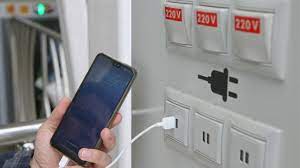
  Juice Jacking is a cybersecurity threat that occurs when cybercriminals manipulate public charging stations, such as USB charging ports in...