Sunday, 2 September 2012

How to Fit in to a New Workplace?

Searching for a job and finally getting a desirable one is quite a challenge. But it is certainly not the end of challenges, but the start of new ones. The main aim is to fit in to the office environment and become a vital part of it.
Working in a new environment means meeting new people and adapting to different methods. It could be harder for a middle aged individual as compared to a youngster. But the right attitude could lead you to the desired destiny.
Follow the points to shine.

Be Punctual:
A reputed and seasoned employee can afford to be late now and then (although it is not a good trait), but a new one cant! Reach the office on time because otherwise not only will you lose the precious time but also the reputation! Never make anybody wait for you in the professional scene. It is highly undesirable and can cost you your reputation.

Establish Goals:
Wandering aimlessly never produces pleasing results. Learn what is expected of you. Analyze your first assignment and try to produce the anticipated results in due time. Learn from the people around you and they could help you as well in the hour of need. But be sure that you do not under-perform and do not let the employer believe that he had overestimated you.
The first assignment is practically a test to judge your abilities. It helps the boss decide how able and responsible you are and how much work you can manage on your own. A gold star at the first assignment means that your job is secure.

Be a Perky Person:
Nobody likes to be around a grave and bore person. Rather it is desirable to spend time with the ones who are cheerful and upbeat. It does not mean that you should crack jokes all day around. Just be friendly and likable. Do not be too serious and straight forward. If there is a conversation going on, join the colleagues and give your opinions and hear other people with consideration. It is important that you get to know the people around the workplace for only then you will feel like “the part of the team”. But be careful; don’t overpower the new people in the first few days. Be submissive and respectful.

Culture of the Company:
Appearances do matter! The dress code is an important part of the things that you should know before you start work. To blend in on your first day, observe the dress code and dress accordingly. You certainly would not want to stand out due to your inappropriate clothes. Observe the general air and climate of the new workplace. You might need to adapt and change your habits to fit in.

Ask Freely:
Being in a new boat, no one expects you to know everything. Your colleagues and the boss will be expecting a barrage of questions. They would rather have you asked a hundred questions than aimlessly do your work and end up in a disastrous situation. In the initial stages of your new employment, you will be given the benefit of doubt and all of your questions would be answered. Take advantage of the situation because once settled in the workplace, it would be automatically assumed that you know everything. Ask from the immediate supervisors and the colleagues. Don’t be afraid to ask the boss because everybody knows that no one is born learned!

Learn How the Equipment Works:
Any kind of job requires either a set of hardware or software tools. You might come across the techniques and tools that you have never encountered before in your life. Learn about them as they will help speed up your work. For instance, the new company might be using Coral Draw instead of Adobe Illustrator. Learn the basics so that at least you can start off immediately. Although people are always there to help, internet is the biggest guide and resource nowadays. Look for good tutorials and let it be your virtual tutor!

Be Proactive:
Being a newbie, you will not be burdened with a lot of work. People will automatically assume that you are in the ‘learning phase’. You boss will be trying to get you settled and give you the general feel of the work. However if you think that you are ready to contribute to the new workplace, don’t sit idly staring out of the window but be proactive and ask the people around what would they like you to do? An extra hand is always welcome.

Be Organized:
Being organized saves time and energy and helps in a systemic approach towards work. This does not only apply to the outwardly appearance of your desk but also to the thoughts and ideas in your mind.
An organized desk means that everything is at its place and no time is required to dig up a particular file when asked by the boss. Similarly, organized ideas will help you work in a flow and proper manner and not in a haphazard way.

Build Contacts:
Contacts and Public Relations play an important role in building up a person’s career. Good relations in the office help a lot in producing enviable results. They ensure coordination and understanding and hence better outcomes. An ally at work helps in the tasks, the mood at the office becomes nice and friendly and it becomes easy to work under stressful and tough situations.
Good contacts can help you outside the office as well. They can not only help in flourishing at a job but also in getting new and better ones.

Maintain Your Reputation:
Impressing people early on and then becoming sluggish is certainly not a good idea. Try to live up to the mark and produce consistent results. Hard work in short bursts does not help much, but consistent hard work is something that can take you up the ladder.

Don’t Whine:
Everyone faces issues while adjusting in new environment. Don’t complain to the new coworkers, you don’t know them yet! Discuss the office related issues with family, friends are trusted colleagues but never with the new coworkers for you don’t know that whether they are trustworthy or not! Don’t become too cozy with the gossip queens of the office.

Communicate with the Boss and Provide the Status of Task:
Communicate with your boss regularly. This way you will know that you are on the right track. Ask questions about any confusion or difficulty you might face. Provide the status of your work regularly, in this way any error or miscalculation on your part could be caught in early stages before it becomes fatal.

The Boss-Employee Relationship:
As cited earlier, it is vital to communicate with the boss. Remember, pleasing the boss is utterly important. But what kind of boss do you have? The answer to this question defines your relationship with the boss. Is he deemed as a team member or does he acts as the sole head of the team and is a team honcho?
A team member boss maybe treated casually. The employees could throw ideas and concepts at him without any formality. He could be visited any time without any prior appointment and has a friendly ‘open-door policy’. On the other hand, a honcho is the one who exercises his power as a supreme authority. His office has the dreadful formal air and you can’t just step in without a prior appointment.
Identify your boss “type” and act accordingly!

Don’t Underestimate Yourself:
Being new means that you have a significant number of things to learn but at the same time you have brought with you new perspective and an advantageous experience. These qualities together with hard work can provide remarkable results. But be rational that you have to adapt to the new ways and procedures of the company and not the other way round.
 Being in a new set up seems tough at the start but it is actually a step towards self development, improvement and progress. Openness to new experiences is accompanied with tremendous learning. Take a new job as a challenge and excel at it!

Thanks & Regards,

"Remember Me When You Raise Your Hand For Dua"
Raheel Ahmed Khan
System Engineer
send2raheel@yahoo.com
send2raheel@engineer.com
sirraheel@gmail.com
send2raheel (skype id)

My Blog Spot
http://raheel-mydreamz.blogspot.com/
http://raheeldreamz.wordpress.com/

My Face book pages
http://www.facebook.com/pages/My-Dreamz-Rebiuld-our-nation/176215539101271    @[176215539101271:0]    
http://www.facebook.com/pages/Beauty-of-islam/223983470988333?sk=wall        @[223983470988333:0]               
http://www.facebook.com/pages/Health-is-wealth/289486761065829?sk=wall        @[289486761065829:0]

Thursday, 26 July 2012

How to Shine at an Interview …

Interviews, interviews and interviews…they are the launch of a new job or a career. But most of the times, they are neither uncomplicated nor very pleasing. A job interview is the perfect example when a person faces excitement and pressure at the same time. This strange combination of sentiments can cloud our judgment and tie our tongues.
Perfection is not a man’s trait and many recruitment managers often over look puny interview mistakes. It is, however, important to be prepared to the greatest extent. There are some slip-ups that you can’t afford and there are some ridiculous mistakes that can cast a bad shadow over your abilities and future career.
On the day of your interview, remember to look good and confident and say all the right things. The rest will be fine. Don’t fret and try to think a little before uttering each word.
 How to Avoid a Disastrous Interview
Don’t be late:
Make proper arrangements beforehand to ensure that you reach the designated place on time. Getting up earlier than usual for a single day won’t hurt! Don’t leave your dress un-ironed till the eleventh hour; you never know about electricity!
If something unexpected happens and you can’t avoid being late, whether it be a traffic jam or your alarm clock didn’t beat on time, immediately call ahead and inform them that you will be late. Don’t keep them waiting, they might adjust you at some other time or reschedule the meeting for some other day.
Don’t forget your CV and other important material:
Perfectly dressed to please and accompanied with your work bag, you accidentally left the file containing your impressive resumes, well crafted work samples and portfolios in the kitchen. That is bad but can be managed. You must have the CV and portfolios in your email. Try to get them printed before hitting the office for interview.
Handling a Wardrobe Malfunction:
Nearly everyone has faced some wardrobe malfunctioning before important events and moments. Such circumstances are sometimes beyond our control. One might get splashed by a passing by car on the way to the interview. It is quite possible that your crisp shirt ends up looking idiotic as you reach the office. The best thing to do in such circumstances would be to continue with the interview and at the start of it, explain what happened. Your interviewer would rather like you for your sound experience than loathe to your mud speckled shirt.
Be Prepared and Deliberate:
Do necessary research about the company and the people you are about to encounter. Any misinformation regarding them might suggest careless attitude on your part. You just can’t forget the interviewer’s name but if it skips your mind out of sheer nervousness, try to be smart and look at the nameplate on the desk for a clue or search for certificates or credits that might be adorning the walls. In this way you might get through the situation.
If You are a Young Professional…
If you are a fresh graduate, you are not a seasoned professional with decades of experience on the resume and employers are well aware of this fact. They know that your lack of experience will be compensated by the knowledge you have about the current trends and technology. Be confident about who you are. During the interview, you should emphasize on the fact that how enthusiastic you are about learning from the industry leaders on board.
Things Not to Say During an Interview:
When Asked to Introduce Yourself…
This is one of the trickiest yet interesting questions asked during the interview.
Upon this question, you do not need to ruminate on your life. The interviewer is least interested in your life’s intricate particulars. Don’t blurt out the following details.
  • A brief synopsis about your childhood.
  • How badly you want this job.
  • The details of your unstable marital life.
  • Your religious and political beliefs.
The potential employer certainly is interested in your professional capabilities and not in your personal life. All he wants to make sure is that you can diligently handle the task at hand.
I Hated My Last Boss:
Your last boss was a living misery and the sole purpose of his life was to make the lives of his subordinates miserable. You know this but you potential employers don’t know! Trash talking is a highly frowned upon habit. People do not like back biters in their team. Even if you are rightly speaking, you would not be liked for cursing your boss.
I Don’t Know Anything About the Company:
This is part of the homework that you should be accompanied with while going to an interview. If the interviewer asks why you are interested in this job and you come up with this sort of reply, then it could be easily assumed that all you are after is money and not a career. With today’s swift technology, there is no excuse for this kind of reply except slackness and irresponsible attitude. Google the company’s profile and grab all the important information so that you can justify the reason for your application.
Don’t Talk About Promptness…
Punctuality is a sought after trait. You show up 10 minutes late; most probably it is going to be fine. It is not going to be nice if you suggest afterwards that promptness is your strength. Avoid any such contradictory statements.
Yes, Yes, Yes, No, No!
One word answers are never persuasive. At an interview, it is your task to convince the interviewer that you are the perfect person for the post and you can do a fine job. Even if the question is vague, try hard to answer it in the best possible way. Don’t drone on and on, but avail every chance to prove that you are the person they are hunting for.
Don’t Embellish Your Experience
Don’t go too far on the road of convincing. Be truthful and honest. If you don’t know something the interviewer asks for, fess up and tell him how much you are looking forward to learn the new things. If you brag about qualities you don’t have, chances are that sooner or later the employer will find out. This situation will lead to even worse circumstances; you will certainly not be liked and you might get kicked out!
I’m Going to Need to Take These Days Off:
We all are committed to our personal lives and we all need to fulfill our responsibilities. The potential employer is clearly aware of this fact. Don’t bring up your personal life during the first interview. If you make it to the offer stage, talk about your personal issues and hopes. Talking about your life prior to a job offer will make an impression that either you are self obsessed or too confident that you will get the job.
And Another Thing I Hate…
Don’t scorn in front of a potential employer. Most people want to hear it all sweet and cutesy. Do not present opposing views on subjects that do not matter. It seeds ill feelings and you might get a rejection in the mind of the interviewer. If you don’t agree upon certain things, either say it politely and respectfully or just let it go. After all you want to score this job and have a good working relationship with your boss.
Most Common Interview Blunders:
According to a survey, the following are the errors job seekers make most often:
  • Using cell phone: 77 percent
  • Appearing disinterested: 75 percent
  • Dressing improperly: 72 percent
  • Appearing haughty: 72 percent
  • Talking disapprovingly about current or previous employers: 67 percent
  • Chewing gum: 63 percent
During a job interview, the interviewer seems vicious. Believe me, he does not want to humiliate or mortify you. He just wants to make sure that he does his job flawlessly by choosing the right person for the company. He is certainly not a sadist; his job (recruitment) makes him appear so!


Thanks & Regards,

"Remember Me When You Raise Your Hand For Dua"
Raheel Ahmed Khan
System Engineer
send2raheel@yahoo.com
send2raheel@engineer.com
sirraheel@gmail.com
send2raheel (skype id)

My Blog Spot
http://raheel-mydreamz.blogspot.com/
http://raheeldreamz.wordpress.com/

My Face book pages
http://www.facebook.com/pages/My-Dreamz-Rebiuld-our-nation/176215539101271    @[176215539101271:0]    
http://www.facebook.com/pages/Beauty-of-islam/223983470988333?sk=wall        @[223983470988333:0]               
http://www.facebook.com/pages/Health-is-wealth/289486761065829?sk=wall        @[289486761065829:0]

Tuesday, 24 July 2012

10 predictions for Windows 8, revisited


Back in 2011, I made a series of educated guesses about what we could expect from Windows 8. At the time, there were almost no concrete details available about the new operating system, and I had no inside information. Now that Windows 8 is about to be released, I thought it might be fun to look back at my predictions and see how I did.

1: ARM Support

This one was kind of a gimme. Microsoft had announced that Windows 8 would run on ARM long before I compiled my list of predictions. Technically, however, it isn’t Windows 8 that runs on ARM, but rather a Windows 8 variant called Windows RT.

2: Separation from the server

My second prediction was that Microsoft might have to get away from developing Windows desktop and Windows client in parallel. My reasoning was that the two operating systems were becoming too different, especially with Windows 8 beginning to support ARM processors. Obviously I got this prediction dead wrong. Microsoft designed Windows 8 and Windows Server 2012 as a part of the same development cycle.

3: OS on a diet

For as long as I can remember, people have complained that Windows is an overly bloated operating system. In fact, one of the reasons why Windows Vista never caught on was that it was bloated and ran slowly. My prediction was that Microsoft was going to dramatically reduce the size of the Windows 8 operating system. I based the prediction on the idea that the OS would have to run on PCs, ARM devices (such as tablets and phones), and run from a USB flash drive.
We won’t know for sure how large Windows 8 will be until it is released. But I decided to compare the contents of the Windows folder on a machine running Windows 7 Ultimate against the same folder on a machine running the Windows 8 Release Preview. The Windows 7 machine’s Windows folder consumed 21.25 GB of space. That same folder on a Windows 8 machine consumed 10.94 GB of space.
It is worth noting that Microsoft’s stated system requirements for the Windows 8 release preview are 16 GB (32-bit) or 20 GB (64-bit) of disk space. These are identical to the system requirements for Windows 7.

4: Goodbye to 32-bit support

Pretty much every computer that’s being sold today includes a 64-bit CPU, and this has been the case for quite some time. So I predicted that Windows 8 would not run on 32-bit PCs.
Although I haven’t heard any official confirmation, it seems that Windows 8 will be available in 64-bit and 32-bit editions after all. The public betas have all been available for both 64-bit and 32-bit systems. I have to admit that Microsoft really disappointed me with this one. I thought that we had surely moved past the days of 32-bit computing. On the upside, at least consumers with older systems may still be able to take advantage of the new operating system if they choose.

5: Virtual plugins

My fifth prediction needs a little bit of explaining. I said that Windows 7 was actually a model for Windows 8 in some ways. As you will recall, Microsoft offers something called Windows XP mode in some editions of Windows 7. With Windows XP mode, Windows XP runs as a virtual machine, but in a rather unique way. Users can either use the Windows XP desktop or they can run applications transparently through the Windows 7 desktop, even though those applications are actually running on Windows XP.
My prediction was that Microsoft would use the same model for Windows 8. I thought that instead of providing backward compatibility to legacy operating systems within the Windows a kernel, Microsoft would create virtual instances of legacy operating systems that function as plugins to Windows 8.
Microsoft chose not to design Windows 8 in this way. Instead, it is including Hyper-V in the desktop operating system so that users may use it to run virtual machines.

6: Heavy reliance on the cloud

My sixth prediction was that Windows 8 would be heavily focused on the cloud. After all, over the past couple of years Microsoft has gone all-in with its investment in cloud technology. I predicted that Windows 8 would enable cloud applications appear to users as if they are installed and running locally.
Actually, I feel almost guilty for making this prediction because it was a bit of a no-brainer. It’s also one of the few predictions I got correct. Microsoft is even referring to Windows 8 as a “cloud-enabled OS.”

7: Native support for virtualized apps

My seventh prediction was that Windows 8 would feature native support for sandboxed applications. For example, I predicted that Internet Explorer would run in a sandboxed environment as a way of preventing malicious Web sites from infecting the system.
But rather than designing Internet Explorer to run as a sandboxed virtual application, Microsoft introduced Enhanced Protected Mode and a number of other new security features. One of the big reasons why Microsoft decided not to completely sandbox Internet Explorer was that it wanted to preserve Internet Explorer’s ability to interact with other desktop applications.

8: A bigger distinction between the consumer and the enterprise versions

My eighth prediction was that Microsoft would make the professional version of Windows 8 small and lightweight but would load up the consumer version with lots of extras that aren’t found in the professional version.
In actuality, Microsoft is making a big distinction between the various versions of Windows 8 and Windows RT, but aside from the fact that Windows RT will include Microsoft Office preinstalled, it is the Windows 8 Enterprise Edition that will see the vast majority of the features that aren’t included in other editions. For more details,

9: Hardware to drive software sales

My ninth prediction was that Microsoft would use support for specialized hardware to woo customers back to PC environments. I fully expected Windows 8 to have native support for the Kinect sensor, for example. Even though I seem to have gotten that prediction wrong, one could say that Microsoft has used hardware to drive sales in the form of Microsoft Surface tablets.

10: A new name

My final prediction was that the operating system would not be called Windows 8. Every few years, Microsoft’s marketing team likes to switch things up and rename products, and it just seemed like it was time for Windows to be rebranded. From a PC perspective, I got this prediction wrong. However, the ARM version of Windows 8 was named Windows RT (for Windows Run Time), so I guess I wasn’t completely off base.

Conclusion

I think that the one thing this article proves is that I am not a psychic. By my count, two of my predictions came true, at least four of my predictions were very, very wrong, and the others fell into a grey area somewhere in between.

Thanks & Regards,

"Remember Me When You Raise Your Hand For Dua"
Raheel Ahmed Khan
System Engineer
send2raheel@yahoo.com
send2raheel@engineer.com
sirraheel@gmail.com
send2raheel (skype id)

My Blog Spot
http://raheel-mydreamz.blogspot.com/
http://raheeldreamz.wordpress.com/

My Face book pages
http://www.facebook.com/pages/My-Dreamz-Rebiuld-our-nation/176215539101271    @[176215539101271:0]    
http://www.facebook.com/pages/Beauty-of-islam/223983470988333?sk=wall        @[223983470988333:0]               
http://www.facebook.com/pages/Health-is-wealth/289486761065829?sk=wall        @[289486761065829:0]

Friday, 25 May 2012

Windows 7 Tips, Tricks and Secrets


PSR(Problem Steps Recorder):

Window 7 has a great inbuilt future called "PSR - Problem Steps Recorder" which help you to record problems caused by any program installed in you PC. As a PC guru you are followed by your friends and relatives or by others to make you to solve the irritating small PC software problems ;-( I know you are very frustrated by this because they even don't know how to describe their actual problem.
But Microsoft knew your pain, So they had came up with a good solution(PSR) by which you can ask your friend/relative/others to run this and send the generated report, So that you can solve their problem with ease.
Now lets see how to work with it, Just follow this simple steps.
Step #1: Click on "Start" and type "PSR" and press enter.Now press "Record"
Step #2: Now run the misbehaving application so that PSR records every thing like every click and key-press, take screen grabs, and package everything up into a single zipped MHTML file.
That's it you are all set to go and solve the problem.

Start Up Repair:

One time or other every body faces this start up problem for a reason or for no-reason, So its good to create a system repair disc straight away in case you run into problems booting the OS later on. Just follow this simple steps.
Step #1: Click Start > Maintenance > Create a System Repair Disc
Step #2: Now let windows 7 create a Emergency boot disk.
If you get to worst case this disk will help you to boot.

Find out Hidden wallpapers and themes:

We all knew that while windows 7 is been installed it will ask for your country, Time Zone etc.., Now based on your responses windows 7 will automatically selects which wallpapers to install by default.
Suppose you had selected your country as India, So that windows seven will install some wallpapers which are related to India.
To unlock all the wallpapers just follow this simple steps.
Step #1: Click on Start and type "C:\Windows\Globalization\MCT" in the search box.
Step #2: Now a window will open with some sub-folders "MCT-AU, MCT-CA, MCT-GB, MCT-US, and MCT-ZA" in which you can select your hidden wallpapers
Here AU, CA, GB, US, and ZA refers to  Australia, Canada, Great Britain, United States and South Africa.

Import file over a network to Windows Live MovieMaker:
In windows 7 by default Windows Live MovieMaker will not give you access to import files over a network, but a simple Registry tweak will make this happen. Just follow this steps.
Step #1: Run REGEDIT
Step #2: Now navigate to HKEY_CURRENT_USER\Software\Microsoft\Windows Live\Movie Maker,
Step #3: Now add a DWORD value called AllowNetworkFiles and set it to 1 to add network support.
That's it your done.

Custom Power Switch:
By default you see the "ShutDown" button on start button. But you are the man who reboots your pc several times a day then you can change "ShutDown" to "ReStart" in a few click by fallowing this simple steps.
Step #1: Right - Click on Start button.
Step #2: Choose Properties and set the 'Power boot action' to 'Restart' to make it happen.
That's it your done!!


Thanks & Regards,

"Remember Me When You Raise Your Hand For Dua"
Raheel Ahmed Khan
System Engineer
send2raheel@yahoo.com
send2raheel@engineer.com
sirraheel@gmail.com
send2raheel (skype id)

My Blog Spot
http://raheel-mydreamz.blogspot.com/
http://raheeldreamz.wordpress.com/

My Face book pages
http://www.facebook.com/pages/My-Dreamz-Rebiuld-our-nation/176215539101271    @[176215539101271:0]    
http://www.facebook.com/pages/Beauty-of-islam/223983470988333?sk=wall        @[223983470988333:0]               
http://www.facebook.com/pages/Health-is-wealth/289486761065829?sk=wall        @[289486761065829:0]

Wednesday, 23 May 2012

7 secrets to PC Heaven…


"Artist's" impression of what your laptop could look like after following the 7 secrets to PC heavenGot a couple of minutes? Sitting comfortably? Good, then I’ll begin.

If you use your laptop every day, like most of us, chances are it’s going to start to degrade as the sands of time swirl by. So, we’ve laid down the seven golden rules to keep your PC on the straight and narrow and tried to recommend some decent free programs to help you along the way.

So here are our seven pearls of technical wisdom to help keep your laptop in shape:

1) Stay safe and secure online

Make sure your PC is protected with adequate security software: Norton Internet Security if you can afford it or free anti-virus and firewall software if you can’t. Add Threatfire and Malwarebytes Anti-Malware for additional protection.

2) Modify your online behaviour

The best way to avoid infection is to make sure you don’t put yourself at risk. Our colleagues at Tech Radar have noted down a few tips and tricks of their own to help you with this.

3) Think twice before installing programs

Don’t install programs for the sake of it – ask yourself if you really need them and check if a ‘portable’ version is available. This can be run directly from your data drive or USB flash drive without cluttering up Windows. Start your search for portable versions of your favourite apps at Portableapps, but also check the programs own site.

4) Uninstall more cleanly

Installing and removing programs quickly builds up clutter and detritus. Use Revo Uninstaller instead of the Program and Features Control Panel to remove programs from your PC – this scans your computer for leftover files and Registry entries after the program is uninstalled, enabling you to perform a cleaner uninstall.

5) Stay up to date with drivers and updates

Make sure Automatic Updates is on (and choose Microsoft Update if you have Microsoft Office installed), and regularly check for program and driver updates – DriverEasy can simplify the process of updating drivers, while File Hippo’s Update Checker can do the same for selected software.

6) Start looking after your drive

Get into the habit of running the disk-check – click Start, then My Computer, right click your C drive, choose Properties Tools tab and click Check Now. Tick both boxes and click OK, scheduling the check for the next time you restart. Windows XP users should also remember to run Disk Defragmenter every month. A useful tool for keeping an eye on your drive’s physical health is CrystalDiskInfo.

7) Use a regular clean-up tool

Install something like CCleaner to periodically clear out redundant files from your hard drive – avoid the Registry cleaning tools though, as these could cause irreparable damage to your Windows installation. Instead, check out Free Registry Defrag for compacting and de-fraging your Registry.


Thanks & Regards,

"Remember Me When You Raise Your Hand For Dua"
Raheel Ahmed Khan
System Engineer
send2raheel@yahoo.com
send2raheel@engineer.com
sirraheel@gmail.com
send2raheel (skype id)

My Blog Spot
http://raheel-mydreamz.blogspot.com/
http://raheeldreamz.wordpress.com/

My Face book pages
http://www.facebook.com/pages/My-Dreamz-Rebiuld-our-nation/176215539101271    @[176215539101271:0]    
http://www.facebook.com/pages/Beauty-of-islam/223983470988333?sk=wall        @[223983470988333:0]               
http://www.facebook.com/pages/Health-is-wealth/289486761065829?sk=wall        @[289486761065829:0]

Tuesday, 22 May 2012

17 Useful Tips To Extend Your Laptop’s Battery Life

It’s no secret that as the usage of a laptop increases, its battery life diminishes. While there has been some development in the type of batteries, battery life is something which users continue to complain about.
Obviously, the type of operating system has a lot to do with the battery performance. The newer operating systems, like Windows 7 are rich in graphics and hence consume more battery.
This article talks about some useful tips and techniques to extend your Windows laptop’s battery life. Mind you, it does mean doing away with certain nice appearance related features. But if you are a performance freak, it shouldn’t bother you.
The tips are written with Windows Vista/7 in mind but most of them are general techniques and should work in all kinds of laptops.

1. Decrease the screen brightness

More the screen brightness, more the battery consumed by your laptop. To decrease it, click on the battery icon on the system tray and select “More power options”.
extend laptop battery life power options
Power options window will open, move the screen brightness (given at the bottom) slider to left. Note that  working with less screen brightness is also good for your eyes.
screen brightness

2. Avoid using screensavers

You left your PC for sometime without any activity. Screensaver starts playing after some time. It consumes the battery so it is better to turn it off.
Right click on your desktop and select Personalize.
personalize desktop
Now on the bottom right, click on “Screen Saver”.
screen saver1
Click on Screen Saver drop down and select “None”. Click OK.
screen saver

3. Defrag from time to time

Defragmentation makes your hard drive more efficient which results in a fast hard drive and hence less battery consumption. You can defrag your hard disk using Windows inbuilt Disk defragmenter or using external tool such as Defraggler.
To use Windows Disk Defragmenter, click on “Start” button and type “Disk defragmenter” (without quotes) in the search box and press Enter key.
disk defragmenter
Disk defragmenter window will appear. Now click on “Configure schedule” to schedule the defragmentation process.
schedule defragmenter
Now select the frequency, day, time and disks from the given drop downs and press OK.
disk defragmenter schedule

4. Disable unnecessary startup applications

Some applications unnecessarily get added on the startup menu thereby increasing system’s booting time. For example programs like Adobe reader, Zune, iTunes and Google desktop search start by default and keep running in the background..
You can use Msconfig to stop unnecessary Windows programs from starting up automatically.

5. Remove external USB devices

USB devices are known to drain the battery. If any USB device ( external hard drive, pen drive, mouse), memory card, iPod or iPhone is connected and you are not using it,  then remove it.
eject external drive

6. Add more RAM

Windows comes with virtual memory feature in which it uses hard disk memory when it runs out of RAM. This feature ultimately results in usage of hard disk and load on laptop battery. To avoid this you should increase your RAM according to your requirement.

7. Avoid running CD/DVD

If you are running your laptop on battery then avoid using CD/DVD because it draws more battery power. It’s better to rip DVD and then watch it when the laptop’s on battery.

8. Sleep is good, but hibernation is better

Standby or sleep state which is also known as power saving state is a nice feature which lets you bring your computer to idle state. You can quickly resume your work anytime by pressing keys of your computer. It uses a small amount of power while its in the sleep state.
It is advisable to use hibernate mode instead of sleep because sleep consumes slight power in comparison to hibernate which consumes no power, saves all your work and resumes from where you stopped it.

9. Optimize the power option

Power option in Windows has different settings to save battery life. To go to power option, click on battery icon in the system tray and select power option.
power option
Now click on “Change power settings”.
power option settings
Here you can decide when your computer will dim the display or when it turns off the display while it is on battery. Also you can decide the time after which it will go to the sleep state.
You can also make use of “Advanced power settings”. Click on the link given below (see the screenshot).
windows power plan
On advanced power window you will find many options to optimize your laptop for a better battery life. For example you can pause the slide show when it is running on battery.
Note: It is advisable not to play with settings if you don’t know what you are doing. It might result in unnecessary issues with your laptop.
advance power options

10. Keep the laptop at a cool place

This is a no-brainer. If the laptop’s kept in a room with low temperature, its fan will have to do less work to dissipate the heat. That’ll put less load on the battery and hence prolong its life.

11. Screen resolution

Low screen resolution consumes less battery in comparison to high screen resolution. To change the resolution right click on desktop and select “Screen resolution”. Windows Vista users can find this option under “Personalize”.
screen resolution
Now move the slider down to decrease the screen resolution. You can also choose from the drop down option.
screen resolution

12. Disable Aero feature

Aero feature is responsible for translucent glass design and attractive window colors. Turning it off saves your battery resources.  Right click on your desktop and select “Personalize”. Now click on “Window color” at the bottom.
windows color
Uncheck the box next to “Enable transparency”.
disable aero

13. Switch off Wireless

If you are not connected with any wireless network then it is better to switch off wireless. Most of the laptops have a wireless switch that let you quickly turn it off.

14. Adjust Visual Effects

Visual effects also consume battery power so it is a good idea to switch it to best performance setting. Type “adjust performance” and press “Enter”.
adjust performance
In performance options window, go to “Visual Effects” tab. Now select the option “Adjust for best performance”. It will turn off all the effects that enhance the visual performance of your PC.
visual effects windows

15. Disable search Index

It’s better idea to disable search index feature in Windows. You can use programs like Ultrasearch as its alternative.
Click on “Start” button and type indexing options in the search box. Press “Enter” key.
indexing option
Now click on Modify.
indexing option1
Here you have to uncheck all the given boxes so that Windows can’t perform extra work to index all the files at these locations.
index location windows

16. Turn off Scheduled tasks

If you have scheduled a task on your laptop to start automatically at a specific time then you have to take care that your task won’t occur at a time when your laptop is running on battery.
To see the scheduled tasks and time when they occur, click on Start button and type Task scheduler in the search box. Press Enter. It will open the task scheduler window.

17. Get your laptop’s vent cleaned

Dust causes your laptop vents to close which results in blockage of area from where the heat is released. It causes more heat and more work load on fan. To avoid it, get them cleaned at frequent intervals.
Note: Don’t try to open the screws yourself and cleaning it. Take it to the service centre and they will take better care of it.
So those were some tips that could help you extend your laptop’s battery life. Let us know what you think of them, and share other tips, that we might have missed, in the comments.
Of course we don’t recommend following each and every tip mentioned because it does involve compromising on a lot of visual and other features. So pick and choose, and follow the steps which don’t affect your work.


Thanks & Regards,

"Remember Me When You Raise Your Hand For Dua"
Raheel Ahmed Khan
System Engineer
send2raheel@yahoo.com
send2raheel@engineer.com
sirraheel@gmail.com
send2raheel (skype id)

My Blog Spot
http://raheel-mydreamz.blogspot.com/
http://raheeldreamz.wordpress.com/

My Face book pages
http://www.facebook.com/pages/My-Dreamz-Rebiuld-our-nation/176215539101271    @[176215539101271:0]    
http://www.facebook.com/pages/Beauty-of-islam/223983470988333?sk=wall        @[223983470988333:0]               
http://www.facebook.com/pages/Health-is-wealth/289486761065829?sk=wall        @[289486761065829:0]

Monday, 14 May 2012

10 New HTML5 Tags You Need To Know About


HTML5 brings a host of new elements and attributes to allow developers to make their documents more easily understood by other systems (especially search engines!), display data more uniquely, and take on some of the load that has required complex JavaScript or browser plug-ins like Flash and Silverlight to handle. Here are 10 new items in HTML5 that will make it easier for you to write your Web sites.

1: <video> and <audio>

One of the biggest uses for Flash, Silverlight, and similar technologies is to get a multimedia item to play. With HTML5 supporting the new video and audio controls, those technologies are now relegated to being used for fallback status. The browser can now natively display the controls, and the content can be manipulated through JavaScript. Don’t let the codec confusion scare you away. You can specify multiple sources for content, so you can make sure that your multimedia will play regardless of what codecs the user’s browser supports.

2: <input> type attributes

The venerable <input> element now has a type attribute, and browsers do some pretty slick things depending on its value. For example, set type to “datetime” and browsers can show calendar/clock controls to pick the right time, a trick that used to require JavaScript. There is a wide variety of type attributes, and learning them (and the additional attributes that go with some of them) will eliminate the need for a lot of JavaScript work.

3: <canvas>

The <canvas> tag gives HTML a bitmapped surface to work with, much like what you would use with GDI+ or the .NET Image object. While <canvas> isn’t perfect (layers need to be replicated by using multiple canvas objects stacked on top of each other, for example), it is a great way to build charts and graphs, which have been a traditional weak spot in HTML, as well as custom graphics. And that is just a start!

4: <header> and <footer>

The <header> and <footer> tags are two of the new semantic tags available. These two tags do not get you anything above and beyond <div> for the actual display. But they will reap long-term rewards for your search engine efforts, since the search engines will be able to tell the difference between “content” and things that are important to the user but that aren’t the actual content.

5: <article> and <section>

The <article> and <section> tags are two more semantic tags that will boost your search engine visibility. Articles can be composed of multiple sections, and a section can have multiple articles. Confusing? Not really. An article represents a full block of content, and a section is a piece of a bigger whole. For example, if you are looking at a blog, the front page might have a section for the listing of all the posts, and each post would be an article with a section for the actual post and another for comments.

6: <output>

The new <output> tag is unique, in that it expects its content to be generated dynamically with JavaScript. It has a value attribute, which can be manipulated through the DOM with JavaScript to change what is displayed on the screen. This is much more convenient than the current ways of doing things.

7: <details>

It seems like every Web site needs to have an expanding/collapsing block of text. While this is easy enough to do with JavaScript or server-side code, the <details> tag makes it even easier. It does exactly what we’ve all been doing for years now: makes a simple block that expands and collapses the content when the header is clicked. The <details> tag does not have widespread support yet, but it will soon.

8: <figure> and <figcaption>

<figure> is a container for content (typically images, but it can be anything), and <figcaption> (which gets put inside the <figure> tag) provides a caption or subtitle for the contents of the <figure> tag. For example, you could have four images representing charts of sales growth within a <figure> tag, and a <figcaption> with text like “Year-to-year sales growth, 1989 - 1993.” The images would be shown next to each other with the text running below all four.

9: <progress>and <meter>

<progress> and <meter> are similar. You use <progress> for a task or a “measure how complete something is” scenario. It also has an indeterminate mode for something that has an unknown duration (like searching a database). The <meter> tag is for gauges and measurements of value (thermometers, quantity used, etc.). While they may look alike on the screen in many cases, they do have different semantic meanings.

10: <datalist>

The <datalist> tag acts like a combo box, where the system provides a pre-made list of suggestions, but users are free to type in their own input as well. There are tons of possible uses for this, such as a search box pre-populated with items based on the user’s history. This is another one of those things that currently requires a bunch of JavaScript (or JavaScript libraries) to handle but that can be done natively with HTML5.

Thanks & Regards,

"Remember Me When You Raise Your Hand For Dua"
Raheel Ahmed Khan
System Engineer
send2raheel@yahoo.com
send2raheel@engineer.com
sirraheel@gmail.com
send2raheel (skype id)

My Blog Spot
http://raheel-mydreamz.blogspot.com/
http://raheeldreamz.wordpress.com/

My Face book pages
http://www.facebook.com/pages/My-Dreamz-Rebiuld-our-nation/176215539101271    @[176215539101271:0]    
http://www.facebook.com/pages/Beauty-of-islam/223983470988333?sk=wall        @[223983470988333:0]               
http://www.facebook.com/pages/Health-is-wealth/289486761065829?sk=wall        @[289486761065829:0

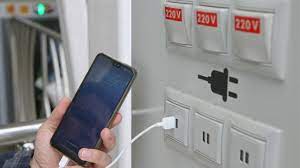
what is Juice Jacking SCAM

  Juice Jacking is a cybersecurity threat that occurs when cybercriminals manipulate public charging stations, such as USB charging ports in...