Wednesday, 17 October 2012

How Hard Drives work

What is a Hard Drive
Almost all desktop computers have a hard drive inside them, but do you really know what they are? Many people when they hear the word hard drive, think that it refers to the computer as a whole. In reality, though, the hard drive is just one of many different pieces that comprise a computer. The hard drive is one of the most important parts of your computer because it is used as a long-term storage space for your data. What that means, is regardless of whether or not the computer is on, or you lose power, the data will still stay stored on this drive keeping it safe. On the other hand, it tells you how important backing up your data is, because if the hard drive malfunctions there is a good chance you will lose it all.
A hard drive is an integral piece of equipment for your computer as your operating system and all your data are typically stored there. In the majority of the situations, if you did not have a working hard drive, or the hard drive malfunctions, you would not be able to boot your computer into the operating system and would get an error. If you opened your computer case and wanted to find your hard drive, it would look similar to the image below:

Image of a Hard Drive
 
How hard drives work
If you were to open your hard drive, which would immediately void your warranty and potentially damage it, you would see something like the image below:
 

Inside a Hard Drive
 
A hard drive consists of the following:
  • Magnetic platters - Platters are the round plates in the image above. Each platter holds a certain amount of information, so a drive with a lot of storage will have more platters than one with less storage. When information is stored and retrieved from the platters it is done so in concentric circles, called tracks, which are further broken down into segments called sectors.
  • Arm - The arm is the piece sticking out over the platters. The arms will contain read and write heads which are used to read and store the magnetic information onto the platters. Each platter will have its own arm which is used to read and write data off of it.
  • Motor - The motor is used to spin the platters from 4,500 to 15,000 rotations per minute (RPM). The faster the RPM of a drive, the better performance you will achieve from it.
When a the computer wants to retrieve data off of the hard drive, the motor will spin up the platters and the arm will move itself to the appropriate position above the platter where the data is stored. The heads on the arm will detect the magnetic bits on the platters and convert them into the appropriate data that can be used by the computer. Conversely, when data is sent to the drive, the heads will this time, send magnetic pulses at the platters changing the magnetic properties of the platter, and thus storing your information.
It is important to note, that since the data stored on your hard drive is magnetic, it is not a good idea to play with a magnet near your hard drive :)

Hard Drive Interfaces
A hard drive connects to your computer through a specific type of interface. The interface on your hard drive must match the corresponding interface on your motherboard. If you purchase a new hard drive that has a interface that your motherboard does not support, it will not work in your computer. Currently there are three interfaces that have become the standard for connecting your hard to your computer. Some information about each of these interfaces are below.
  • IDE or ATA - This is currently the most common interface used but is quickly becoming overcome by the newer SATA interface. Hard drives using this type of interface have speeds up to 100 Mbps.
  • SATA - A newer interface that uses less bulky cables and has speeds starting at 150 Mbps for SATA and 300 Mbps for SATA II. Almost all computer manufacturers have started using SATA drives.
  • SCSI - This type of interface is typically used in a business environment for servers. Hard Drives designed for a SCSI interface tend to have a faster RPM which therefore provides better performance.
When buying a hard drive
When purchasing a hard drive there are some characteristics you want to keep in mind that will help you determine the right drive for your needs. These characteristics are:
  • Seek Time - The amount of time required to move a drive's read/write head to a particular location on the disk. The lower the number, the better.
  • Access time - The actual amount of time from when a data is requested from a drive and delivered. The lower the number, the better.
  • RPMS - How fast the platters spin. The higher the number, the faster the drive will be.
  • Capacity - The amount of storage space available on the drive. Typically most drives purchased today will be 80 Gigabytes or greater. An 80 GB hard drive will on average cost around 60 USD.
  • Interface - How the hard drive connects to your computer. Make sure that the hard drive's interface is supported on your computer before you purchase it.


Thanks & Regards,

"Remember Me When You Raise Your Hand For Dua"
Raheel Ahmed Khan
System Engineer
send2raheel@yahoo.com
send2raheel@engineer.com
sirraheel@gmail.com
send2raheel (skype id)

My Blog Spot
http://raheel-mydreamz.blogspot.com/
http://raheeldreamz.wordpress.com/

My Face book pages
http://www.facebook.com/pages/My-Dreamz-Rebiuld-our-nation
http://www.facebook.com/pages/Beauty-of-islam
http://www.facebook.com/pages/Health-is-wealth

Sunday, 14 October 2012

How to use the Windows 7 System Recovery Environment Command Prompt

The Windows 7 System Recovery Command Prompt is a text-based console that allow you to perform maintenance and recovery tasks on your computer by typing the commands that you would like to execute. These commands allow you to perform a wide variety of tasks such as replace infected files, delete infections, repair boot up configurations for your hard drive, resize hard drive partitions, as well as many other tasks. Like the Windows Vista Recovery Command Prompt, the Windows 7 version also allows you to run graphical programs such as Notepad, Regedit, and possibly some anti-malware programs. This is a huge advantage as you now have a much larger variety of tools at your disposal to repair your computer.
In order to access the Windows 7 System Recovery Command Prompt you first need to boot your computer off of the Windows 7 DVD by inserting it into your DVD player and turning your computer on. Your computer will start and you should see the BIOS listing the hardware on your computer as well as other information. When that information has been cleared, your computer will see that a bootable DVD is inserted and present a prompt similar to Figure 1 below. If your computer does not boot off of the DVD, and instead boots directly into Windows 7, then you can read this guide on how to configure your bios to boot from a CD or DVD.

Figure 1. Boot the computer from the Windows 7 DVD

As you want to boot the computer from the Windows 7 DVD, you need to press a key on your keyboard, and any key will do, when you see the above prompt. It is possible that the DVD that came with your computer does not allow you to boot off from it. If this is the case, then your computer manufacturer most likely installed the Windows Recovery Environment directly on to a small partition on your hard drive. To access this partition, you would slowly tap the F8 key on your keyboard after the BIOS information clears from your screen until you see the Windows startup menu. From this menu use your arrow keys to select the option for the Windows System Recovery and press the Enter key on your keyboard. You should now see a black screen with a white status bar at the bottom stating Windows is loading files.... After a while, the status bar will turn completely white and you will see a screen stating that Windows is loading. The Windows 7 Setup environment will continue to load and when finished you will be presented with a screen similar to Figure 2.

Figure 2. Configure language and location options in Windows 7 Setup

At this screen you should configure the Language to install, Time and currency format, and Keyboard or input method options so that they are set correctly for your location and language. When done, please press the Next button. You will now be at the main Windows 7 setup screen where you would normally install Windows 7 on to your computer.

Figure 3. Windows 7 Install Windows screen

You should now click on the Repair your computer option, which will bring you to a new screen where the repair process will look for all Windows 7 installations on your computer. When done you will be presented with the System Recovery Options dialog box as shown in Figure 4 below.

Figure 4. System Recovery Options

Select the Windows 7 installation you would like to repair. If there are drivers that you need to load in order for Windows 7 to recognize your hard drives, click on the Load Drivers button and load the files that are needed. When ready, press the Next button to continue.
The automatic Startup Repair screen will now start and attempt to fix any issues that it detects that could cause your computer to not boot properly. This process may take some time, so please be patient while it runs. At one point, if it does not find anything, it will prompt you to perform a System Restore as shown in the image below.
Figure 5. System Restore Prompt

At this prompt press the Cancel button to continue with the automatic Startup Repair process. When the repair process has finished it will state that it cannot fix the problem and ask if you would like to submit the information to Microsoft as shown below. You should press the Don't Send button, which will then cause a screen to be shown stating that Startup Repair could not fix the problems automatically.

Figure 6. Startup Repair has finished
At this screen click on the menu item labeled View advanced options for system recovery and support. This will bring you to a screen, as shown below, where you can see a list of recovery options that are available.

Figure 7. Choose a recovery tool

At this screen you should click on the Command Prompt option. Once you click on that option, the Command Prompt will open as shown in Figure 8 below.

Figure 8. Command Prompt in the Windows Recovery Environment
If you are unfamiliar with the Windows 7 Command Prompt, the first thing you may notice is that there is no graphical user interface, but instead there is a prompt where you will need to type in all of your commands. Though this may appear daunting, once you learn the commands to type in, you will find that the command prompt is a powerful tool for accessing files, repairing Windows, or removing malware. If you would like to learn more about the command prompt and the various commands that you can use, then please read the Introduction to the Windows Command Prompt tutorial.
It should be noted that when you boot into the Windows 7 Recovery Environment the drive letter for your Windows installation may not be the same. For example, if your Windows installation is normall on the C: drive, it may not be located at the D: drive. To determine what drive letter your Windows installation is located on, you can type this command press enter:
bcdedit | find "osdevice"
This command will display output similar to : os device partition=D:. The drive letter after partition= is the drive that your Windows installation is located. To change to that drive letter you can then type D:, or whatever other drive letter it shows, and press Enter on your keyboard.
Using the command prompt is quite simple. Simply type in the command you wish to perform and then press Enter on your keyboard. If you have entered the command properly then it will be executed and the output from the command will be displayed directly within the command prompt. A powerful feature of the System Recovery Console Command Prompt is that not only can you run run console programs, but you can also run certain Windows programs such as Notepad or an antivirus program. Unfortunately, not all Windows programs will be able to run in this environment, so you will need to test them to determine which ones will operate correctly.
To help get you started with using the Command Prompt I have listed a series of console commands that work in this environment. To get help information for each of these programs you can type the program name followed by /h and press the enter key. For example, to see the help information for the copy command you would type copy /h and then press the enter key. As more programs and commands are found they will be added to the lists below. Each of the console commands must be typed into the console in order to execute them.
Console Command
Description
attrib Change permissions on files.
Bootrec You can use the Bootrec.exe tool in the Windows Recovery Environment (Windows RE) to troubleshoot and repair the master boot record (MBR), boot sector,and Boot Configuration Data (BCD) store
bcdedit Displays and allows you to change how Windows boots up. This command is useful for people who are having trouble with the Windows Boot Manager
cd Changes the current directory
chkdsk Checks a hard disk for errors and attempts to repair them.
copy Copy a file from one location to another.
del Deletes a file
dir Lists the files and folders in the current directory
diskpart Load the Windows disk management program. From this program you can create, delete, shrink, and expand your existing partitions as well as get information about partitions and hard drives
icacls Change file and folder permissions and display or modify access control lists (ACLs)
mkdir Creates a new folder
more Displays the content of a file one page at a time
move Moves a file or a folder
reg Perform Windows Registry operations.
ren Rename a file or folder
rd Remove an empty folder
type Display the contents of a file
xcopy Copy a folder or files to another location
Windows Program Name
Description/Notes
Notepad.exe Opens up the Windows Notepad so you can view and edit text files. You can also use the file browser when click the File -> Open menus to copy, move, rename, and delete files.
Regedit.exe The Windows Registry Editor.
rstrui.exe The System Restore console where you can restore your computer back to earlier restore points.
When you are finished using the Command Prompt you can exit it by typing exit and then pressing the Enter key on your keyboard. The command prompt will close and you will now be back at the list of available repair tools, where you can reboot your computer.
The Windows 7 System Recovery Command Prompt is such a powerful tool because you can perform actions on your files and data without having to be in Windows. This means that if you are infected with malware you can use the recovery environment to clean your computer of rootkits or malware without fear of them hindering your efforts as they will not be started.
An advanced feature of the Windows 7 Recovery Command Prompt is that you can load your Windows Registry hives and then access them using Regedit. That way if you or a program has changed a setting in your Registry that does not allow you to boot up, you can fix it using the command prompt. An example of this would be when an antivirus program incorrectly fixes the Userinit key and thus you are no longer able to login to Windows. To fix this you would start the Windows Recovery Environment Command Prompt and load the hives, fix the changes, and unload them again.
This can be done using the following commands:
Type REG LOAD HKLM\TempSoft :\Windows\System32\config\software and press Enter to load the Registry hive.
Type regedit.exe and press Enter to start the Windows Registry Editor.
Browse to HKEY_LOCAL_MACHINE\TempSoft\Microsoft\Windows NT\CurrentVersion\Winlogon key within the Registry Editor.
Double-click on the Userinit value and change the data to read :\Windows\system32\userinit.exe,
Exit the Windows Registry Editor.
Type REG UNLOAD HKLM\TempSoft and press Enter to unload the Registry hive.
Type exit and press Enter on your keyboard and then reboot your computer.

Thanks & Regards,

"Remember Me When You Raise Your Hand For Dua"
Raheel Ahmed Khan
System Engineer
send2raheel@yahoo.com
send2raheel@engineer.com
sirraheel@gmail.com
send2raheel (skype id)

My Blog Spot
http://raheel-mydreamz.blogspot.com/
http://raheeldreamz.wordpress.com/

My Face book pages
http://www.facebook.com/pages/My-Dreamz-Rebiuld-our-nation
http://www.facebook.com/pages/Beauty-of-islam
http://www.facebook.com/pages/Health-is-wealth

Monday, 8 October 2012

10 things you can do to improve network and PC security

Takeaway: Securing your network and PCs is a never-ending battle. Here are some effective strategies to add to your arsenal.
Security. It’s that which drives some administrators to early retirement, gray hair, or a permanent room in a padded cell. Okay, that’s an exaggeration… but you get the idea. Security is tops on most every administrator’s list. And with good reason. Incomplete or poor security can bring down a company’s network and/or computer resources. That equates to lost work, which affects bottom line.
Administrators must do all they can to ensure the security of their networks. But for some (especially those without the financial resources), just knowing where to start and what to use is the biggest challenge. With that in mind, I thought I’d lay down 10 tools and methods to help you arrive at better network/PC security.

1: Use Linux

I can already hear the groans from the gallery, but the truth of the matter is, you will cut down on PC security issues if you begin migrating at least some of your desktops to Linux. The best way to do this is to migrate users who don’t require the use of proprietary, Windows-only applications. If you use Exchange, just make sure you set up OWA so that the Linux users can access Web mail. Migrate a quarter of your desktops to Linux and that’s a quarter fewer security risks you’ll have to deal with.

2: Block users from installing software

I’ve had to deal with companies that do this. Yes, it can be a pain when users actually need a piece of software installed (you’ll have to visit their offices just to enter the administrator credentials), but the dividends it pays off are significant. You’ll have far fewer viruses and less malware to deal with than you would if the users were allowed to install at will. The give and take is certainly worth it here.

3: Upgrade your antivirus

I’m always shocked when I see antivirus tools that are out of date. This goes for applications and virus definitions. When dealing with the Windows platform, it’s crucial to keep everything as current as you possibly can. Keeping antivirus up to date is the only way to help protect vulnerable machines from malicious software and files.

4: Switch your browser

Not to stir up the mud, but the truth of the matter is simple: Internet Explorer is still an incredibly insecure browser. One of the best things you can do is migrate your users from IE to Firefox. Yes, Firefox may be getting a bit bloated, but it’s still far more secure than the Windows counterpart.

5: Disable add-ons

Browsers and email clients make use of add-ons. Some are necessary for work — some are not. Those that aren’t needed should not be used. Although some add-ons offer some handy features, it’s not always possible to ensure the validity or security of an add-on. And even when you can, it’s not always a given that the add-on won’t affect the performance of the machine. I’ve seen plenty of Outlook, IE, and Firefox add-ons drag a machine to a screeching halt.

6: Deploy a hardware-based firewall

Let’s face it: The built-in Windows firewall is simply not sufficient. If you want real security, you need a dedicated firewall on your network. This firewall will be a single point of entry that will stop many more attempted breaches than the standard software-based firewall will. Besides, the hardware-based fire will be far more flexible and customizable. Look at a Cisco, Sonicwall, or Fortinet hardware firewall as your primary protection.

7: Enforce strict password policies

For the love of all things digital, don’t let your end users control their password destiny. If you do this, you’ll wind up with accounts and systems protected with “password”, “1,” or worse — nothing at all. Make sure all passwords require a combination of upper/lowercase, numbers and letters, and special characters. While you’re working on password policies, be sure you enforce a rule that passwords must be changed every 30 days. It’s an inconvenience, but it’s worth the security it brings.

8: Do not share networked folders with “Everyone”

Although it’s tempting (especially when you can’t figure out why a user can’t access a folder), do NOT give the Everyone group access to a folder. This just opens up that folder to possible security issues. If this becomes an absolute necessity, only do it temporarily. For security’s sake, spend the extra time troubleshooting why that user can’t access the folder, instead of just giving Everyone full access.

9: Use network access control, like PacketFence

PacketFence is one of the most powerful NAC tools you will find. With this tool, you can manage captive-portal for registration and remediation, and you have centralized wired and wireless management, powerful guest management options, 802.1X support, layer-2 isolation of problematic devices, and much more. With this system on your network, you can rest assured that rogue devices will have a much smaller chance of connecting.

10: Use content filtering to protect from malware

I’m not a big fan of posing as Big Brother, so I don’t advocate too much content filtering. I do, however, believe it’s valid to use content filtering to prevent malware. There are obviously certain phrases, keywords, and URLs that can and should be filtered, based on their history of causing malware. I won’t post the best keywords to filter for malware, as those words might land me in trouble. Just do a simple search for keywords associated with malware.

Other tips?

Securing your network and PCs is a constant battle. But with the right tools and strategies, your network can be a much safer arena for productivity. Give a few of these options a look and see if they offer the missing pieces needed to further secure your environment.

Thanks & Regards,

"Remember Me When You Raise Your Hand For Dua"
Raheel Ahmed Khan
System Engineer
send2raheel@yahoo.com
send2raheel@engineer.com
sirraheel@gmail.com
send2raheel (skype id)

My Blog Spot
http://raheel-mydreamz.blogspot.com/
http://raheeldreamz.wordpress.com/

My Face book pages
http://www.facebook.com/pages/My-Dreamz-Rebiuld-our-nation
http://www.facebook.com/pages/Beauty-of-islam
http://www.facebook.com/pages/Health-is-wealth

Saturday, 6 October 2012

How to uninstall a program in Windows Vista, Windows 7, and Windows 8

Introduction
There are two ways to uninstall a program in Vista; the wrong way and the right way. Unfortunately, though, too many people uninstall a program using the wrong ways, which can lead to poor performance and problems on the computer. These wrong ways are delete the program's folder or just deleting the icons. When you attempt to remove a program in this way, there will be a large amount of configuration information left in the Windows Registry as well as files that may be installed in locations other than the program's folder. These orphan files and Registry data have the chance of causing conflicts on your computer thus leading to problems.

The proper way to uninstall a program is to use the uninstall routine that is bundled with the program itself. This will remove the files, Windows Registry information, and other configuration from your computer so that there are no conflicts in the future. When a program is installed in Windows, it will add information to the Windows Registry on the proper way to uninstall it. You can then use Windows Vista's Programs and Features control panel to properly uninstall the program. This tutorial will walk you through using this control panel so that you uninstall programs correctly. This method has not changed too much from previous version of Windows, but there have been some changes in Vista, which should be outlined.

How to uninstall a program in Windows Vista
To see a list of the programs that we can uninstall we must first open the Programs and Features control panel. To do this you should follow these steps:
  1. Click on the Start button to open your Start Menu. The Start button looks like this: Vista Start Button
     
  2. When the Start Menu opens click on the Control Panel menu option.
     
  3. When the Control Panel window opens click on the Uninstall a program option option under the Programs category. This option is shown by the arrow in the image below. If you are using the Classic View of the Control Panel, then you would double-click on the Programs and Features icon instead.


    Vista Control Panel
     
You will now be at the Programs and Features, or Uninstall or change a program, screen as shown below. From this screen you can uninstall programs, view installed updates, examine your digital locker, and turn Windows features on and off.

Vista Programs and Features Screen
Figure 1. Programs and Features Screen
This screen contains a list of the programs installed on your computer, the company that developed it, and when it was installed. This screen also contains four options in the left navigation bar that are unrelated to uninstalling a program. These four options are:
  • View Installed Updates - If you click on this option you will come to a screen that shows the installed updates and Ultimate Extras. From this screen you then have the ability to uninstall them. More information about this screen can be found in this tutorial.
     
  • Get new programs online at Windows Marketplace - If you click on this link your web browser will open and go to the Windows Marketplace homepage. From here you can purchase and download software.
     
  • View purchased software (digital locker) - When you purchase software at the Windows Marketplace, the software will be added to your digital locker. You can manage these programs from this screen.
     
  • Turn Windows features on or off - Windows Vista is installed with certain features enabled and disabled by default. By clicking on this option you can manage that Vista features you want enabled. More information can be found at this tutorial.
Now that we know what all the options in this screen do, lets start learning how to uninstall a program. The first step is look through the list of programs for the one that you would like to uninstall and then left-click on it once so that it becomes highlighted. Once you highlight a program you will see two new options next to the Organize and View button called Uninstall and Change. I have pointed those out with arrows in the image below.

Selected entry in the programs list
Figure 2. Select entry in the program list

If you press the Change button, the program will launch it's setup so that you can modify how the program is presently installed. It is important to note that the Change button does not uninstall a program, but rather allows you to modify how it is currently installed. If you want to uninstall the program you should instead click on the Uninstall button. Once you click on the uninstall button you will be presented with a confirmation asking if you would like to continue as shown in Figure 3 below. For those who like shortcuts, you could just double-click on an entry to start this process as well. For some programs when choose to uninstall it, Windows may prompt you with a message stating Windows needs your permission to continue. At this screen you should click on the Continue button.

Confirmation screen to continue with the uninstall
Figure 3. Confirmation screen to continue with the uninstall
If you do not want to continue, then you should press the No button, and you will come back to the list of programs. If you press the Yes button Vista will start the uninstall routine for the program and begin to remove it. An uninstall screen will typically now open and may ask you questions about how the program should be uninstalled. You typically want to remove the entire program except any data that you may need in the future. As each program's uninstall process is different, it is advised that you read each screen carefully and continue with the uninstall process. When uninstalling certain programs you may receive a prompt from Windows stating An unidentified programs wants access to your computer. When you receive this as you uninstall the program, you should click on the Allow button, as it is the uninstaller being started.

The program will now continue to uninstall, and when completed you will be back at the list of programs installed on your computer. You will notice, though, that the program you just uninstalled is no longer listed. At this point you can either uninstall another programs or close the Programs and Features screen.
When examining the list of programs in your Uninstall list, if you are unsure as to what a program is, you can search for its name in our Uninstall Database.
How to uninstall a program in Windows 7 and Windows 8
To see a list of the programs that we can uninstall we must first open the Programs and Features control panel. To do this you should follow these steps:
  1. In Windows 7 click on the Start button to open your Start Menu. The Start button looks like this: Windows 7 Start Button .When the Start Menu opens click on the Control Panel menu option. In Windows 8, click on the Control Panel app in the Windows 8 Start Screen. Then scroll to the bottom and click on the More Settings option.
     
  2. When the Control Panel window opens click on the Uninstall a program option option under the Programs category. This option is shown by the arrow in the image below. If you are using the Classic View of the Control Panel, then you would double-click on the Programs and Features icon instead.


    Windows 7 & Windows 8 Control Panel
     
You will now be at the Programs and Features, or Uninstall or change a program, screen as shown below. From this screen you can uninstall programs, view installed updates, and turn Windows features on and off.

Windows 7 and Windows 8 Programs and Features Screen
Figure 1. Programs and Features Screen
This screen contains a list of the programs installed on your computer, the company that developed it, and when it was installed. This screen also contains four options in the left navigation bar that are unrelated to uninstalling a program. These four options are:
  • Control Panel Home - This will bring you back to the main Control Panel screen.
     
  • View installed updates - If you click on this option you will come to a screen that shows the installed Windows updates on your computer
     
  • Turn Windows features on or off - Windows 7 and Windows 8 is installed with certain features enabled and disabled by default. By clicking on this option you can manage that Vista features you want enabled.
Now that we know what all the options in this screen do, lets start learning how to uninstall a program. The first step is look through the list of programs for the one that you would like to uninstall and then left-click on it once so that it becomes highlighted. Once you highlight a program you will see two new options next to the Organize and View button called Uninstall and Change. I have pointed those out with arrows in the image below.

Selected entry in the programs list
Figure 2. Select entry in the program list

If you press the Change button, the program will launch it's setup so that you can modify how the program is presently installed. It is important to note that the Change button does not uninstall a program, but rather allows you to modify how it is currently installed. If you want to uninstall the program you should instead click on the Uninstall button. Once you click on the uninstall button you will be presented with a confirmation asking if you would like to continue as shown in Figure 3 below. For those who like shortcuts, you could just double-click on an entry to start this process as well. For some programs when choose to uninstall it, Windows may prompt you with a message stating Windows needs your permission to continue. At this screen you should click on the Continue button.

Confirmation screen to continue with the uninstall
Figure 3. Confirmation screen to continue with the uninstall
If you do not want to continue, then you should press the No button, and you will come back to the list of programs. If you press the Yes button Vista will start the uninstall routine for the program and begin to remove it. An uninstall screen will typically now open and may ask you questions about how the program should be uninstalled. You typically want to remove the entire program except any data that you may need in the future. As each program's uninstall process is different, it is advised that you read each screen carefully and continue with the uninstall process. When uninstalling certain programs you may receive a prompt from Windows stating An unidentified programs wants access to your computer. When you receive this as you uninstall the program, you should click on the Allow button, as it is the uninstaller being started.

The program will now continue to uninstall, and when completed you will be back at the list of programs installed on your computer. You will notice, though, that the program you just uninstalled is no longer listed. At this point you can either uninstall another programs or close the Programs and Features screen.
When examining the list of programs in your Uninstall list, if you are unsure as to what a program is, you can search for its name in our Uninstall Database.

Conclusion
Now that know the proper way to uninstall a program you can avoid leaving errant files and configuration information on the computer when you would like to remove a program. This also allows you to clear up some extra disk space, if needed, by uninstalling any programs that you do not need.


Thanks & Regards,

"Remember Me When You Raise Your Hand For Dua"
Raheel Ahmed Khan
System Engineer
send2raheel@yahoo.com
send2raheel@engineer.com
sirraheel@gmail.com
send2raheel (skype id)

My Blog Spot
http://raheel-mydreamz.blogspot.com/
http://raheeldreamz.wordpress.com/

My Face book pages
http://www.facebook.com/pages/My-Dreamz-Rebiuld-our-nation
http://www.facebook.com/pages/Beauty-of-islam
http://www.facebook.com/pages/Health-is-wealth

TCP and UDP Ports Explained

Introduction
In this tutorial we will discuss the concept of Ports and how they work with IP addresses. If you have not read our article on IP addresses and need a brush up, you can find the article here. If you understand the concepts of IP addresses, then lets move on to TCP and UDP ports and how they work.
The devices and comptuers connected to the Internet use a protocol called TCP/IP to communicate with each other. When a computer in New York wants to send a piece of data to a computer in England, it must know the destination IP address that it woud like to send the information to. That information is sent most often via two methods, UDP and TCP.

The two Internet workhorses: UDP and TCP
UDP? TCP? I know you are getting confused, but I promise I will explain this in very basic terms so that you can understand this concept.
TCP stands for Transmission Control Protocol. Using this method, the computer sending the data connects directly to the computer it is sending the data it to, and stays connected for the duration of the transfer. With this method, the two computers can guarantee that the data has arrived safely and correctly, and then they disconnect the connection. This method of transferring data tends to be quicker and more reliable, but puts a higher load on the computer as it has to monitor the connection and the data going across it. A real life comparison to this method would be to pick up the phone and call a friend. You have a conversation and when it is over, you both hang up, releasing the connection.
UDP stands for User Datagram Protocol. Using this method, the computer sending the data packages the information into a nice little package and releases it into the network with the hopes that it will get to the right place. What this means is that UDP does not connect directly to the receiving computer like TCP does, but rather sends the data out and relies on the devices in between the sending computer and the receiving computer to get the data where it is supposed to go properly. This method of transmission does not provide any guarantee that the data you send will ever reach its destination. On the other hand, this method of transmission has a very low overhead and is therefore very popular to use for services that are not that important to work on the first try. A comparison you can use for this method is the plain old US Postal Service. You place your mail in the mailbox and hope the Postal Service will get it to the proper location. Most of the time they do, but sometimes it gets lost along the way.
Now that you understand what TCP and UDP are, we can start discussing TCP and UDP ports in detail. Lets move on to the next section where we can describe the concept of ports better.

TCP and UDP Ports
As you know every computer or device on the Internet must have a unique number assigned to it called the IP address. This IP address is used to recognize your particular computer out of the millions of other computers connected to the Internet. When information is sent over the Internet to your computer how does your computer accept that information? It accepts that information by using TCP or UDP ports.
An easy way to understand ports is to imagine your IP address is a cable box and the ports are the different channels on that cable box. The cable company knows how to send cable to your cable box based upon a unique serial number associated with that box (IP Address), and then you receive the individual shows on different channels (Ports).
Ports work the same way. You have an IP address, and then many ports on that IP address. When I say many, I mean many. You can have a total of 65,535 TCP Ports and another 65,535 UDP ports. When a program on your computer sends or receives data over the Internet it sends that data to an ip address and a specific port on the remote computer, and receives the data on a usually random port on its own computer. If it uses the TCP protocol to send and receive the data then it will connect and bind itself to a TCP port. If it uses the UDP protocol to send and receive data, it will use a UDP port. Figure 1, below, is a represenation of an IP address split into its many TCP and UDP ports. Note that once an application binds itself to a particular port, that port can not be used by any other application. It is first come, first served.

<-------------------- 192.168.1.10 -------------------->
0 1 2 3 4 5 .. .. .. .. .. .. .. .. 65531 65532 65533 65534 65535
Figure 1. IP address with Ports

This all probably still feels confusing to you, and there is nothing wrong with that, as this is a complicated concept to grasp. Therefore, I will give you an example of how this works in real life so you can have a better understanding. We will use web servers in our example as you all know that a web server is a computer running an application that allows other computers to connect to it and retrieve the web pages stored there.
In order for a web server to accept connections from remote computers, such as yourself, it must bind the web server application to a local port. It will then use this port to listen for and accept connections from remote computers. Web servers typically bind to the TCP port 80, which is what the http protocol uses by default, and then will wait and listen for connections from remote devices. Once a device is connected, it will send the requested web pages to the remote device, and when done disconnect the connection.
On the other hand, if you are the remote user connecting to a web server it would work in reverse. Your web browser would pick a random TCP port from a certain range of port numbers, and attempt to connect to port 80 on the IP address of the web server. When the connection is established, the web browser will send the request for a particular web page and receive it from the web server. Then both computers will disconnect the connection.
Now, what if you wanted to run an FTP server, which is a server that allows you to transfer and receive files from remote computers, on the same web server. FTP servers use TCP ports 20 and 21 to send and receive information, so you won't have any conflicts with the web server running on TCP port 80. Therefore, the FTP server application when it starts will bind itself to TCP ports 20 and 21, and wait for connections in order to send and receive data.
Most major applications have a specific port that they listen on and they register this information with an organization called IANA. You can see a list of applications and the ports they use at the IANA Registry. With developers registering the ports their applications use with IANA, the chances of two programs attempting to use the same port, and therefore causing a conflict, will be diminished.

Thanks & Regards,

"Remember Me When You Raise Your Hand For Dua"
Raheel Ahmed Khan
System Engineer
send2raheel@yahoo.com
send2raheel@engineer.com
sirraheel@gmail.com
send2raheel (skype id)

My Blog Spot
http://raheel-mydreamz.blogspot.com/
http://raheeldreamz.wordpress.com/

My Face book pages
http://www.facebook.com/pages/My-Dreamz-Rebiuld-our-nation
http://www.facebook.com/pages/Beauty-of-islam
http://www.facebook.com/pages/Health-is-wealth

How to connect an iPad to a Wireless or Wi-Fi network

Introduction
The iPad is ultimately a device create to allow you consume content in an easy and portable manner. As there is no better location for consumable content than the Internet, being able to connect to a Wi-Fi network so you can access the Internet is a necessity. This guide will walk you through all of the steps required to connect to a Wi-Fi network using your iPad. We have also outlined steps that will allow you to access almost all types of Wi-Fi networks as well as using proxy servers if your particular scenario requires it.

How to connect to a Wi-Fi or Wireless Network
This section will explain how to connect to a Wi-Fi or Wireless network that is broadcasting its name or SSID. For most public, and many private, Wi-Fi networks the name, or SSID, of the network is broadcast so that anyone who tries to connect to it will be able to do so. This guide will walk you through the steps of connecting to a Wi-Fi network that is broadcasting its name. If you wish to connect to a wireless network that is not broadcasting its name, then please see the steps here.
  1. Start the iPad
     
  2. Tap on the Settings app. The Settings icon looks like the following:


    Settings Icon
    Settings Icon


    Once in the settings application, you will be at the General Settings screen as shown below.


    General Settings screen
    General Settings screen

     
  3. Tap on the Wi-Fi category to get to the screen where you will connect to a wireless network as shown below.


    Choose an available wireless network screen
    Choose an available wireless network screen

    When you reach this screen, the iPad will start searching for Wi-Fi networks that are in range and that are broadcasting their names. As it discovers available networks it will list them under the Choose a Network... label. Please note that it may take some time for the iPad to see all of the available networks, so please be patient while it searches. You can tell that it is searching as there will be an animated symbol next to the Choose a Network... label while it is searching. If it does not find anything, it will pause for about a minute and then attempt to search again.

    When you see the Wi-Fi network that you would like to connect to, simply tap on it to attempt to join it. If it has a lock next to the name, then it will require you to enter a wireless encryption password in order to connect to it as discussed in the next step.
     
  4. Once you Tap on a network name, it will try to connect to it. If the network is not using encryption, then you can just skip to this step. If the network is using wireless encryption, though, you will be presented with a screen asking you to enter the wireless encryption password as shown below.


    Enter wireless security password screen
    Enter wireless security password screen


    In the password field, enter the wireless encryption password that is required to join this network. This password was originally set on your wireless router, and if you do not remember this password anymore, you can logon to the router and change the password to a new one. Please note that if you change the password on the router, then any other devices that connect to this device wirelessly will also need to have their settings changed to use the new password.

     
  5. The iPad will now attempt to connect to the network, and when finished, will display the Wi-Fi settings screen again, but this time with the joined network listed and with a checkmark next to it as shown below.


    Screen showing the iPad connected to a wireless network
    Screen showing the iPad connected to a wireless network


    This checkmark designates that your iPad is connected to the network. You can also see that your iPad is connected to a wireless network as in the upper left-hand corner you will see the word iPad with the Wi-Fi symbol ()next to it. You can now go back to your home screen and use any apps that require Wi-Fi connectivity.

How to connect to a Wi-Fi or Wireless network that is not broadcasting its name or SSID
There are many networks that do not advertise their network name, or SSID, for extra security. Due to this, the only way for an iPad to connect to these types of networks is to manually enter the network information that is required to make a connection. This section will explain how to manually connect your iPad to a wireless network.
In order to accomplish this please follow these steps:
  1. Start the iPad
     
  2. Tap on the Settings app. The app icon looks like the following:


    Settings Icon
    Settings Icon


    Once in the settings application, you will be at the General Settings screen as shown below.


    General Settings screen
    General Settings screen


  3. Tap on the Wi-Fi category to get to the screen where you will connect to a wireless network as shown below.


    Wi-Fi Settings screen
    Wi-Fi Settings screen

     
  4. Determine the correct Name, or SSID, that you will be connecting to and Tap on the Other... button. You will now be at the Other Network screen where the iPad will ask you to enter the settings required to connect to the network.


    Enter SSID screen
    Enter SSID screen


    In the Name field, enter the network name or SSID.
     
  5. Then tap on the Security button and you will be at the screen show below.


    Select Security Encryption Type screen
    Select Security Encryption Type screen

    At this screen you need to select the wireless encryption that the network that network you wish to connect to is using. It is important that you select the correct encryption type, as if you do not, you will not be able to connect to the wireless network. After selecting the encryption type, tap on the Other Network button.
     
  6. You will now be back at the Other Network screen where the iPad is now prompting you to enter the password as shown below.


    Enter Security Encryption Password screen
    Enter Security Encryption Password screen

    In the password field, please enter the password that is required to connect to the Wi-Fi network. This password was originally set on your wireless router, and if you do not remember this password, you can logon to the router and change the password to a new one. Please note that if you change the password on the router, then any other devices that connect to this device wirelessly will also need to have their settings changed to use the new password.
     
  7. Once you have entered in all the required information, tap the Join button on the iPad keyboard. The iPad will attempt to connect to the network, and when finished, will display the Wi-Fi settings screen again, but this time with the joined network listed and with a checkmark next to it as shown below.


    Screen showing the iPad connected to a wireless network
    Screen showing the iPad connected to a wireless network


    This checkmark designates that your iPad is connected to the network. You can also see that your iPad is connected to a wireless network as in the upper left-hand corner you will see the word iPad with the Wi-Fi symbol () next to it. You can now go back to your home screen and use any apps that require Wi-Fi connectivity.

How to configure your iPad Wi-Fi connection to use a static IP address
If the wireless network you are connecting to does not use DHCP to assign IP addresses to wireless devices, then you will need to configure your iPad with static IP addresses and other information in order to connect to the Internet or a network. To do this first find out the info, such as the static IP address, IP subnet mask, DNS servers, and router IP address, and proceed with the following steps. Please note, you must first create the wireless profile that you will be assigning static information to.
  1. Start the iPad
     
  2. Tap on the Settings app. When the Settings app loads, you will be at the General Settings category.

     
  3. Tap on the Wi-Fi settings category and you will be at a screen as shown below.


    Screen showing the iPad connected to a wireless network
    Screen showing the iPad connected to a wireless network

    You should now tap on the to access the specific settings of the wireless connection.
     
  4. You will now be at the Wi-Fi network settings screen for the connected network.


    Wireless settings for a Wi-Fi network
    Wireless settings for a Wi-Fi network
  5. Now tap the Static button to enter the static settings screen as shown below.


    Screen showing the iPad connected to a wireless network
    Screen showing the iPad connected to a wireless network

    In this screen you can enter the IP address, IP subnet mask, router IP address, DNS server, and search domains as necessary. At a minimum you must enter information in the IP Address, Subnet Mask, Router, and DNS fields for the iPad to be able to properly work on the wireless network. If you do not know this information, you should ask the router owner or administrator.

    When you are done entering the information, tap on the Wi-Fi Networks button and then go back to your Home screen to start using the iPad with these new settings.

How to configure your iPad to use a Proxy Server
Some networks require you to use a proxy server to access the Internet. A proxy server is another computer or device that acts as an intermediary between you and the Internet by relaying your requests to a server and the servers responses back to you. Unfortunately, this type of setup requires you to specify certain settings in order for you to use the Internet properly. This section will provide information on how to configure your iPad to use a proxy server.
  1. Start the iPad
     
  2. Tap on the Settings app. When the Settings app loads, you will be at the General Settings category.

     
  3. Tap on the Wi-Fi settings category and you will be at a screen as shown below.


    Screen showing the iPad connected to a wireless network
    Screen showing the iPad connected to a wireless network

    You should now tap on the to access the specific settings of the wireless connection.
     
  4. You will now be at the Wi-Fi network settings screen for the connected network.


    Wireless settings for a Wi-Fi network
    Wireless settings for a Wi-Fi network


    At the bottom you will find three proxy server options that you can choose from. The first option is Off, which is the default option and means that the iPad will not use a Proxy Server. The second setting is Manual, which means that you will enter the specific information about proxy server in the specified fields. The last option is Auto, which allows you to enter a URL that contains the configuration information as to what proxy settings the iPad should use.
     
  5. If you need to specify manual settings, then simply tap on the Manual button and fill in the appropriate fields as shown below.


    Screen showing the iPad connected to a wireless network
    Screen showing the iPad connected to a wireless network

    If your proxy server requires you to login to it before it allows you to use it, make sure you slide Authentication to ON and input your login credentials.

    If you have a configuration URL that contains your proxy settings, then simply tap on the Auto button and you will see a screen similar to below.


    Screen showing the iPad connected to a wireless network
    Screen showing the iPad connected to a wireless network

    Simply fill in the URL field with the proxy autoconfiguration URL.
     
  6. When you are done setting up your proxy server, tap on the Wi-Fi Networks button and then go back to your Home screen to start using the iPad with these new settings.

Deleting a Wi-Fi connection profile so the iPad wont automatically join it
At times you may find the need to delete a Wi-Fi connection profile that has previously been configured on your iPad. Whether this is because the profile belongs to a hotel that you are no longer staying at or you have changed your wireless password and need to re-enter it, this section will explain how to delete the profile from your iPad.
  1. Start the iPad
     
  2. Tap on the Settings app. When the Settings app loads, you will be at the General Settings category.

     
  3. Tap on the Wi-Fi settings category and you will be at a screen as shown below.


    Screen showing the iPad connected to a wireless network
    Screen showing the iPad connected to a wireless network

    You should now tap on the next to the Wi-Fi profile that you wish to delete.
     
  4. You will now be at the Wi-Fi network settings screen for the connected network.


    Wireless settings for a Wi-Fi network
    Wireless settings for a Wi-Fi network
  5. Tap on the Forget this Network button.
     
  6. When the iPad asks you to confirm that you wish to forget the network, tap on the Forget button.
You will no longer automatically connect to this network. Do not be concerned, though, if you go back to the Wi-Fi settings and still see the network you just specified should be forgotten. Once you power off the iPad, and start it again, the network will no longer be listed.

Troubleshooting
When working with computers and networking problems invariably happen. This section will offer steps that can be tried to resolve Wi-Fi connectivity issues with your iPad.
What to do if your iPad can't access a visible network:
The first step is to make sure that the wireless connection does not require a password. You can determine this by seeing if there is a lock symbol next to the wireless network name. If there is, then make sure you know the correct password to the network before attempting to join it. If that still does not resolve your issue, try moving closer to the wireless router and seeing if you are able to connect then.
What to do if you cannot access a network that is not broadcasting its network name or SSID:
Diagnosing connections to Wi-Fi networks that are not broadcasting their name or SSID can be difficult. The first suggestion, if the wireless router is under your control, is to allow the router to broadcast the name. If you can then connect, then you may have entered the name incorrectly, selected the wrong wireless encryption type, or entered the wrong wireless encryption password. You should then confirm these settings by looking at the configuration of the router, and if necessary, changing those settings to new ones. Then try connecting again.
What to do if you cannot access the Internet when connected to a wireless network:
If it shows that you are connected to a network, but you still cannot access the network, you should first make sure that your Internet connection is actually working. Test the connection from another computer and device to confirm that it is working. If it is working, go into the Wi-Fi settings for this particular connection on the iPad and under the DHCP settings, make sure that you have an assigned IP Address, Subnet Mask, Router, and DNS. If you do not have these fields populated, then tap on the Renew Lease button, and then tap on the Renew button when it asks if you with to continue. This will make the iPad request new connection settings. Once that is done, if you now have settings in the DHCP fields, try connecting to the Internet again.
If this still does not work, then you may want to confirm that you do not need to enter a static networking configuration into the iPad. To determine this, you should ask the owner or administrator of the wireless router.
Last, but not least, if the iPad shows its connected, but cannot access the internet, it could be because you entered the wrong wireless encryption password or it was changed after you initially created the Wi-Fi profile. To test this, simply Forget the network profile and try recreating it and entering the password again.
How to fix slow iPad Wi-Fi speeds or low quality wireless connections:
Unfortunately there have been a lot of reports that the iPad wireless range and sensitivity is not as good as it could, or should, be. That means that Wi-Fi connections that work fine with other devices or computers may not work as well with the iPad. To determine the quality of your Wi-Fi connection, you can look in the upper left-hand corner of the device. The three quality levels are shown from best to worst as , with the lower the level being the worst connection speed.
Unless Apple releases an update, or a software hack is released to increase the power of the antenna, we will need to use other methods to make the Wi-Fi connection quality better. To do this you can first try and use the iPad closer to the wireless router to increase your connection quality. This, though, is a ridiculous thing to have to do considering how much you spent on the iPad. Another option is to purchase a wireless extender that can extend the range of your wireless device so it is strong throughout your entire house or apartment. Popular extenders are the Linksys WRE54G Wireless-G Extender, Belkin Wireless G Universal Range Extender, or the Netgear WGXB102 Range Extender. When you add an extender to your wireless network, it will increase the range of your wireless router so that you can connect to your network in locations that previously you could not.

Conclusion
As you can see there are many Wi-Fi configuration options available to suit your specific needs. By knowing how to connect to a wireless network you can now connect to the Internet from locations such as a public Wi-Fi hotspot, a friends house, or a hotel. No matter what the specific requirement of your location, hopefully the information in this guide has shown you how to work around them.


Thanks & Regards,

"Remember Me When You Raise Your Hand For Dua"
Raheel Ahmed Khan
System Engineer
send2raheel@yahoo.com
send2raheel@engineer.com
sirraheel@gmail.com
send2raheel (skype id)

My Blog Spot
http://raheel-mydreamz.blogspot.com/
http://raheeldreamz.wordpress.com/

My Face book pages
http://www.facebook.com/pages/My-Dreamz-Rebiuld-our-nation
http://www.facebook.com/pages/Beauty-of-islam
http://www.facebook.com/pages/Health-is-wealth

Monday, 1 October 2012

10 things you should do when building a new PC

Takeaway: Building a custom system lets you tailor the components to meet your needs, while holding down the costs. Here are a few things to consider before you get started.
Oftentimes, the only way to get what you really want out of a new computer is to build it yourself. Although there is nothing inherently difficult about building a PC, there are a number of considerations you need to take into account before you begin ordering the parts. This article outlines 10 such considerations.

1: Decide what is really important to you

Even though computer hardware prices have dropped dramatically over the last few years, it is still possible to spend several thousand dollars building a PC. Assuming that you want to keep the total cost reasonable, stop and think about how the computer will be used. This will help you best determine how to allocate your budget. For example, if the computer is going to be used as a gaming machine, you might choose to spend a good part of your budget on a high-end video card or two. On the other hand, if the computer will serve as a virtualization host, you might be better off spending the money on extra memory.

2: Plan for the future

Computers evolve at a feverish pace, and there is no way to future-proof your hardware. The eventual obsolescence of your computer is a sad fact of life, no matter how high end the machine might be today. One thing you can do to help extend the lifespan of your new computer is to purchase a high-end system board. The system board as the one component that arguably limits your computer more than anything else. For example, your system board limits the total amount of memory that can be installed on the computer and dictates the system’s CPU architecture. Spending a little bit extra on a system board now might make it easier to upgrade your computer down the road.

3: Don’t skimp on the fans

One lesson I have learned the hard way is that heat kills. If a computer gets too hot, the heat can damage the CPU. This can be an issue for almost any PC, but the problem of heat dissipation comes more pronounced on higher-end systems because they generally produce more heat. Consider the problem of heat dissipation when you’re designing your new system. Be sure to plan for an adequate number of fans and maybe even some liquid cooling.

4: Determine up front if you will need any extra connectors

While I am on the subject of cooling, I want to mention that it is important to determine up front how you will power the cooling fans. Many of the cooling fans that are available today are designed to attach to a four-pin Molex connector (normally used for powering legacy disk types). However, some of the newer fans use a PWM connector instead. These fans are designed to plug directly into the system board, which can monitor the fan’s rotational speed. While this might sound good in theory, system boards have a limited number of fan connectors.
For example, I recently built several new systems. The case I used had four fans installed, but my system board had connectors for only three fans (plus the CPU fan). As a result, I had to order an adapter for each machine that would allow me to plug the fan into a disk power connector.

5: Perform periodic maintenance

As previously mentioned, higher-end systems need plenty of fans to keep the internal components cool. However, installing lots of fans alone isn’t enough. It’s also necessary to do some periodic maintenance to make sure that the fans are doing their jobs.
To give you a more concrete example, I have a fairly high-end PC that has nine case fans. The problem is that the computer sits underneath my desk, relatively obscured from sight. A few months ago, the computer’s air intake became clogged with dust. This prevented the nine fans from moving enough air, and the computer overheated as a result. My failure to keep the air intake clean resulted in having to purchase a new processor.
As a side note, it is also a good idea to periodically make sure that the fans installed in your new computer are actually working. Many of the case fans on the market are cheaply made and sometimes stop working.

6: Choose power supplies carefully

When picking out a power supply for your new computer, you should first make sure that the power supply delivers adequate wattage to power the computer. Unlike the days of old, however, wattage should not be your only consideration.
You also need to consider the types of connectors provided by the power supply. A basic, low-end PC will probably be fine using a power supply that provides only system board and disk connectors. But higher-end systems may require that certain components be powered directly by the power supply. For example, some AMD video cards require a 850 watt (or higher) power supply with two 150 watt eight-pin and two 75 watt six-pin PCI Express power connectors.
Another concern with regard to your power supply is the length of the power cables. If you ‘re building the PC in a large, full-tower case, you may find that some disk power cables are simply too short to reach all of the drive bays.

7: Shop around for the best price on memory

When I was shopping for parts to build my latest PC, I noticed that memory prices were all over the place. I compared prices with three online vendors and found that one vendor’s price for memory was double that of the lowest-priced vendor for exactly the same product. It goes without saying that different vendors will often have different prices, but I was really surprised by just how drastic the price differences were for memory.

8: Don’t buy more case than you need

When building a computer, it can be tempting to spend a few extra bucks and get a case that is flashy and eye-catching. Sometimes, though, the higher-end cases could end up being overkill. For example, I recently found a case that had 15 Internal drive bays. But a case like that would seriously been overkill since I was planning to install only six drives.

9: Verify that your case has the appropriate USB headers

When picking out a case, you should also make sure that it has the appropriate USB headers. Most of the newer system boards have a connection for USB 3.0 headers. The physical design of this port prevents the connection of USB 2.0 headers. So it’s important to look for a case that fully supports USB 3.0.

10: Have a plan for cable management

Finally, make sure that you have a plan for cable management. The more components you install in a computer, the more cables you’ll generally have to deal with. For instance, every drive requires a data cable and a power cable, and you might also need power cables for things like case fans and video cards. All those cables can get messy — and a clutter of cables can restrict airflow through the case, resulting in excessive heat. Develop a plan for keeping the cables neat and tidy before you start building.

Thanks & Regards,

"Remember Me When You Raise Your Hand For Dua"
Raheel Ahmed Khan
System Engineer
send2raheel@yahoo.com
send2raheel@engineer.com
sirraheel@gmail.com
send2raheel (skype id)

My Blog Spot
http://raheel-mydreamz.blogspot.com/
http://raheeldreamz.wordpress.com/

My Face book pages
http://www.facebook.com/pages/My-Dreamz-Rebiuld-our-nation
http://www.facebook.com/pages/Beauty-of-islam
http://www.facebook.com/pages/Health-is-wealth

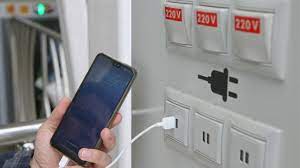
what is Juice Jacking SCAM

  Juice Jacking is a cybersecurity threat that occurs when cybercriminals manipulate public charging stations, such as USB charging ports in...