Sunday, 21 December 2014

Five Android Apps You Didn't Know You Needed


Although you might be thinking that you have all the apps that you need on your Android phone, there are some really useful apps that you might have never found the need for. But they are going to be real useful when you start using them. Here are five great apps that will enhance your Android experience:

1. Grooveshark: Your Android phone is one of your primary music devices. It's great to listen to music on your phone, but wouldn't it be awesome if you didn't have to download every song and stream them instead? In fact, wouldn't it be totally mind-blowing if you could listen to every song in the world for free? Grooveshark.com lets you do exactly just that. The mobile app for the site, however, isn't on the Play Store or App Store. Go to Mobile.Grooveshark.com to get the app, and you won't have to download any song again.

2. Wallet: Unlike your bank account, It is sometimes really hard to track all the money that goes in and out of your wallet. You may not remember spending money on something and then when you check your wallet later you may wonder where all the money went. Wallet is a great app that lets you record all the cash transactions you make. It lets you add records of income or expense and you can view your current balance. It even lets you view all your transactions visually in a neat pie-chart and lets you set various budgets for all the things you'll be spending on. It is a really useful app that essential for anyone who does cash transactions on a daily basis.

3. AVG Antivirus: Unlike the days of old, today's smartphones are very much like computers. And it is very much possible for your phone to be infected with a virus or financial information being stolen. Although this might never happen, it is very much recommended to install a mobile internet security suite on your phone, the most popular of which is AVG Antivirus. Once you install it, the app sits in the background and you mostly will never have to open it. Hence it is not very intrusive and doesn't disturb your daily activities. So go ahead and install AVG to avoid feeling sorry later.

4. MightyText: What this app allows you to do is SMS from your computer or tablet using your Android phone number. The whole thing is synced across all devices through the internet. As long as your computer/tablet and Android phone stay connected, all you need to do is open the MightyText app on your computer/tablet and start texting! It doesn't take long to install the required software and app is tremendously useful.

5. �Torrent: If you are into torrents and you are into Android, this is the app for you. Using this app, you can download torrents directly on your Android phone. There is absolutely no speed or size limit for your downloads and you can even download that really large torrent on some public WiFi or maybe even your office network!

Thanks & Regards,

"Remember Me When You Raise Your Hand For Dua"
Raheel Ahmed Khan
System Engineer
send2raheel@yahoo.com
send2raheel@engineer.com
sirraheel@gmail.com
send2raheel (skype id)

My Blog Spot 
http://raheel-mydreamz.blogspot.com/


Keep Your Smartphone Safe From Spies


Our smartphones hold more personal information on us than any other device that we use. It is information that could easily fall into the hands of a con artist if the phone is stolen one day. The thief could quickly learn a great deal about you by looking at your address book, your messages, images and browser history. He could learn where you live, where you work, who your friends are and so on.

Since a phone is easily misplaced or stolen, it is important to plan in advance for the day it happens. You need to protect yourself from the havoc that the con artist can wreak on your life.

Fortunately, a good degree of basic protection isn’t hard to come by. All you need is to tweak a few basic settings and get a couple of good apps. Your smartphone should be nearly impossible for most intruders to crack open then.

More security for the lock screen

Any smartphone will allow the user to set a password. Android phones offer even more security with their finger gesture passcode system. A passcode is more than just a barrier. If an intruder should try to hack your phone by repeatedly by experimenting with different passcodes, your phone can be programmed to shut them out and then to erase all your data automatically so that they can’t get at it.

Look into getting a lost phone app

The world still doesn’t have a dependable system in place to help locate or disable a lost or stolen phone. There are a few apps that help somewhat, though. With a phone tracker app installed, you can reach your phone to gain a rough idea about its location.

Apple has the appropriately named Find My iPhone app for the iOS that comes preinstalled. The switch to turn it on is found among the settings offered for the iCloud. Should you lose your iPhone one day, you just need to go to the iCloud website to find your phone on a map.

Android users have many app options. Lookout, one of the more popular ones, offers an added investigative feature – it can take a picture of the thief as he uses the phone and email the picture to you. If you hand the picture to the police, it could help them in their investigations. Most phone locator apps on both the iPhone and on Android phones offer a remote data erase feature to help you keep your data from getting into the wrong hands. You could press a button on your computer and make sure that no stranger gets to look at your pictures or email.

Watch out for viruses and other malware

Apple’s Mac computers are famous for being easy to keep free of viruses. The company, apparently, wants to keep its phones just as clean. Apple vets each app before release on the app store. Unfortunately, the Google Play Store is a free for all place. The Android platform, therefore, as is prone to viruses as the Windows computer platform is. According to Lookout, the Android security app maker, about 20 million Android users get malware infections each year.

Once you do get malware, there is no telling what it can do. With one particular kind of malware called tolling , the malware makes it possible for others to place unauthorized charges on your cell phone bill.

You need a phone malware app to get rid of these nasties.

Go easy on the location sharing

Many phone apps depend on being allowed to track your location to function correctly. For instance, if you have a restaurant or movie app, it could use your location to give you the relevant suggestions for which show to catch or where to head for a meal. Photo apps can also use your location to add to metadata on each picture. Both Android and iOS phones allow you to make global settings for which apps get to track your location. You can also turn location tracking off completely.

The more apps you allow access to your location data the more you give away. Should your phone be stolen one day, the thief could easily see where you go each day. You should be careful about not allowing too many apps to track you.

Data encryption can save you

Even if you’ve protected your phone with a password, it only protects against intrusion through the phone’s own user interface. A thief with even a passing knowledge of phones could plug it into a computer and look at everything inside. This is why you need data encryption.

Recent Apple phones have great data encryption by default – both at the hardware and software levels. No thief can get in as long as there is a password. Some high-end Android phones have data encryption, too – usually only software-based, though.

If your phone doesn’t have inbuilt encryption, you could always buy an app for it. SecureSafe and SecureMemo are two of the best regarded names in the business.

Thanks & Regards,

"Remember Me When You Raise Your Hand For Dua"
Raheel Ahmed Khan
System Engineer
send2raheel@yahoo.com
send2raheel@engineer.com
sirraheel@gmail.com
send2raheel (skype id)

My Blog Spot 
http://raheel-mydreamz.blogspot.com/


How to Get Your Android Data Usage Under Control

Phones and apps get more sophisticated by the day. Yet, they run up against the same old real world problem as always – data caps. If you like to snap pictures and share them on Facebook, watch a high quality YouTube video clip or two each day and try out a couple of new apps sometimes, you can burn through your monthly 5GB data allowance (if you have an unlimited plan) in no time . Simply listening to a half hour of streaming music on Pandora each day can knock nearly a gigabyte off your data package.

You can use up your data even without actively doing anything. Your apps often go on the Internet on their own and download updates and other data.

When your data allowance does run out, you need to either only use data when you are in a Wi-Fi zone or pay the phone company a few dollars for a little extra data to see you through the month. How do you make your data package last you all month without having this happen?

Your first step is to estimate your data usage

The easiest way to estimate how much data you use for your smartphone activities each day is to look at the inbuilt data usage monitor on your phone. Android phones later than version 4.0 have an inbuilt data monitor. Android’s monitor tells you how much data each of your apps uses through your cellular connection.

If you need to check how much data a new app is known to use each month before you install it, you can simply use your phone carrier’s data usage estimator on its website.

Now that you know how much data you use with each app, what can you do about it?

It’s easy to cut down on your direct data use – you can simply decide to not watch videos or download large apps when you don’t have free Wi-Fi. Figuring out how to restrict the background data used by your apps can be less obvious. Background data use – the data used by your apps when downloading more recent versions or your email and social network apps when they frequently check for updates – can contribute significantly to your data usage. Here’s how you should go about not wasting your data limit on these activities.

Restrict background data use to the times when you have Wi-Fi

The easiest way to cut down on background data use is to make sure that none of it happens unless you have Wi-Fi. To restrict your apps from updating themselves on a cellular connection, you need to open the Play Store, tap on the Menu button, go to Settings and then tap on Update over Wi-Fi only .

When it comes to restricting other kinds of data use – checks for new email, Facebook updates, Dropbox uploads and weather updates – you have three approaches to take.

You can select Restrict background data on the Data usage menu under Settings . This will make sure that no application uses any data on its own. While this method is certainly effective, it stops background activity even by apps that use very little data. Weather apps, for instance, offer useful information but hardly use any data.

If you would like to selectively restrict background data, you can go to each individual application and find the Restrict background data option among its settings. If you have many apps, this can be a hassle. It can also be a hassle because when you make these settings inside individual apps, they will usually not automatically turn on when you get to a free Wi-Fi zone.

A good way to selectively restrict background data on individual apps would be to get a special app for the job – a third-party data manager like Onavo Count . With this app installed, you get fine control over your data even on phones running ancient Android versions.

Completely turning your cellular data off when you reach your limit

If you absolutely do not want to spend a cent on overages once you finish your data allowance, you have two simple ways of achieving it. If your Android phone is version 4.0 or later, you can simply go to your Data usage submenu and select Set mobile data limit . It will cut you off at any data usage level that you set. On earlier versions of Android, you can use an app like Data ON-OFF to do the same thing.

Trying to use less of data when you browse the Internet

When you need to browse the Internet for information, having dozens of pretty images downloading on each page can send your data usage up. A good way to put a lid on such data profligacy would be to use a data-restricted mobile browser like Opera Mini. Opera’s mobile browser makes sure that you download as little data to build your webpages as possible.

If you would like to be even more restrictive, browsers like TextOnly help you view only the text on webpages.

Another powerful option to keep from having to pay for unnecessary data downloads when you browse the Internet would be to use an application like Adblock Plus or AdAway .

You can also help lower your data consumption by simply buying the apps that you use the most instead using free, ad-supported versions.

A few final tips on cutting down on your data use

Make sure that you never use a task killer. Each time you kill a task, you get rid of its cache files. This is a bad idea because the next time you use the app, the information in the cache will need to be downloaded all over again.

You can cache your Google Maps , too. You can get Google Maps to download and store all the map data on your phone for the areas that you tend to use the most.

Thanks & Regards,

"Remember Me When You Raise Your Hand For Dua"
Raheel Ahmed Khan
System Engineer
send2raheel@yahoo.com
send2raheel@engineer.com
sirraheel@gmail.com
send2raheel (skype id)

My Blog Spot 
http://raheel-mydreamz.blogspot.com


Thursday, 18 December 2014

3 Ways Viruses Infect Your Android Device


Have you ever accessed your bank account through your Android device? There is a virus that can harvest your banking credentials from your phone and forward it to cyber-criminals in a neatly formatted email. The FakePlayer virus will hijack your phone's SMS functionality and send text messages to expensive premium-rate phone numbers. NickiSpy listens to your discussions with friends and family and forwards them to a remote server. British Telecom once said that most Android phones are infected with some sort of malware. But how does someone get these viruses?

=>Repackaging

Over 80 percent of Android malware piggybacks on legitimate apps. A malware author downloads an app, dissects it and inserts malicious code. He then reassembles the app and uploads it to the Google appstore or an alternative market. After you download the app, the virus detaches from the legitimate program and wreaks havoc on your phone. Potentially repackaged apps include popular game apps, paid apps and utility programs.

Malware authors will hide their repackaged viruses by changing the names of the class-files. The versatile DroidKingFu virus uses the name "com.google.update" when running on an infected phone. This kind of naming scheme makes it difficult to find malware on your Android; when are you going to think "com.google.update" is dangerous?

=>Update Attack

Repackaging usually shoves the entire malicious payload into the legitimate program. This is very easy to detect, especially via Google's Bouncer scanner. Leveraging an update attack, however, makes it extremely difficult to detect malware infections. The trick is in fragmentation; the repackaged program only contains a benign stub that contains no malicious code. Once the program is installed on a user's phone, however, the stub will hijack Android's update screen and tell the user that a new update is available. If the user accepts, then the stub will pull down the real malware and infect the phone. This technique is exceptionally powerful because it circumvents scanners like Google's Bouncer, which allows viruses leveraging update attacks to add themselves to Google's appstore.

=>Drive-by Download

The third method Android malware utilizes is the drive-by download. Drive-by downloads do not leverage actual browser exploits. Instead, they attempt to convince the user to download them via social engineering. This family of malware attempts to entice the user with offers of "feature-abundant" or "fascinating" apps. Normally this is conducted via website redirection, where the user is redirected to an advertisement that boasts the features of some fake app. If the user downloads the app then the malware will install alongside it and implant deep within the operating system. An example is the Spitmo app, a variant of the Zeus banking trojan. This app recommends the user install a brand-new app that can better protect banking activities. If the user installs the app, the Spitmo trojan will proceed to dig up the user's banking credentials and send them to a remote server.

Android malware has many ways of infiltrating you phone. It is recommended that you install two separate antivirus programs and perform scans regularly. Another precaution is to be very selective with your installations. Never install an app that comes from an advertisement. Unless you have done sufficient research on the app, do not install it. The security of your Android phone is in your hands.

Thanks & Regards,

"Remember Me When You Raise Your Hand For Dua"
Raheel Ahmed Khan
System Engineer
send2raheel@yahoo.com
send2raheel@engineer.com
sirraheel@gmail.com
send2raheel (skype id)

My Blog Spot 
http://raheel-mydreamz.blogspot.com


Backing Up Your App/Game Data on an Android Device


Gamer or non-gamer, every Android user dreads the day that he will need to part with his app data. Whether it is an OS upgrade or a new phone purchase, it can be difficult to wrap things up on one phone and move up.

While apps can always be installed again, numerous personal settings on various apps and hard-earned accomplishments on games can be hard to get back. While Google Drive offers cloud backup for some apps, it only helps a little.

Many people feel forced to make a choice. They make a pros-and-cons list for what they feel they gain upgrading their phone versus keeping their app data. With a new class of backup apps today, though, you no longer need to make a choice.

=>Finding a backup solution

Helium is an Android app that offers mobile device backup for games, apps, messages and contacts. Installing this app requires no rooting. You get to back your device up painlessly. What follows is a step-by-step guide on how you might go about backing up your app/game data using Helium. These steps should apply to other similar backup apps, too.

=>Installing the backup app

To begin, you need to download and install both the Helium app on your Android device and the Helium Desktop program on your computer. Once you have both apps launched, you should attach your Android device to your computer using a USB cable.

As soon as you enable USB debugging on your Android device, Helium displays a list of all the apps installed on your device. To pick the apps that you want saved, you need to tap the checkbox next to the each app.

=>Backing your apps up

Backing up your apps, you get to choose whether to save app data only or the entire app as well (the apk file). Choosing to only save app data usually results in only a small backup file. You will need to download the app again if you need to use it, though. Tapping on the backup button should save the apps and games that you've selected.

With the premium version of Helium you get to back up your data to Dropbox or Google Drive. On the free version, you get to just back up your phone to your computer.

=>Restoring your apps

Restoring apps and data to a phone is as simple as backing it up. You plug your Android device into the computer, start the Android app and choose USB Storage on the Restore and Sync tab. When you check the apps that you want restored, you get everything on your old phone back.

Helium and other apps like it don't work with every Android app unless the phone is rooted. To back up a difficult app, you have no choice but to root the phone before you save its data.

Thanks & Regards,

"Remember Me When You Raise Your Hand For Dua"
Raheel Ahmed Khan
System Engineer
send2raheel@yahoo.com
send2raheel@engineer.com
sirraheel@gmail.com
send2raheel (skype id)

My Blog Spot 
http://raheel-mydreamz.blogspot.com/

The Top 5 Ways to Extend the Battery Life of Your Android Smartphone


Unlike iOS devices, most Android handsets use replaceable batteries. Many top-selling phones such as the Samsung Galaxy range have removable back covers enabling users to keep going when they can't find a charger. However, there are still ways to increase battery life without carrying around spare batteries. Here are the top five ways to extend the battery life of your Android smartphone.

#1. Buy a Battery Case

Battery cases such as Mophie Juice Packs are phone cases containing built-in batteries. Simply slot your phone into the case and you are ready to enjoy hours of extra charge. Battery cases will add extra weight and bulk to your phone but they also offer protection and do away with the need to replace batteries on the move. Cases work with your existing charger and you do not need to remove the case to charge the phone.

#2. Install a Battery Saving App

Perhaps the most widely used app for increasing the battery life of Android smartphones is AMC Security by IObit Mobile Security. Available free from Google Play, this app will scan and clean any Android device and free up available RAM, thus helping to improve battery life. Although the main purpose of this app is to protect phones from viruses, malware, spyware, malicious URLs and phishing sites, it has one of the best battery saving features available. On high battery saving mode, the app will shut down Wi-Fi, GPS and Bluetooth and lower the screen brightness to improve the battery life. This is ideal if you don't have Ultra Power Saving mode of the Galaxy S5 or the Ultra Power Saving mode of the HTC One (M8).

#3. Trim Bloatware

Bloatware commonly refers to apps that come bundled with Android handsets when you purchase them. For instance, you might never use the S Voice app but this app cannot be deleted and will use up battery life. To remove this type of app, you will need to root your device. Bloatware can also refer to unnecessary features such as live wallpaper and home screen widgets that poll status updates in the background can suck up a huge amount of power. Customization is what makes Android fantastic but you should remove things you do not use or need.

#4. Update Regularly

New versions of apps often use less power than their predecessors. Always configure your handset to automatic updates and periodically check Google Play for apps that require manual updates.

#5. Buy Better Batteries

Whether your phone has a power-saving mode or you use an app to maximize battery life, you will eventually come up against the same problem: you actually need certain features and functionality. For instance, it isn't comfortable for your eyes if you screen is dimmed too low and it isn't practical to have your phone in Airplane mode the whole time. One solution is to buy an upgraded battery from a third party manufacturer. Replacement batteries often give your phone a longer lifespan than the original batteries.


Conclusion

These five tips should help you get the most out of your Android device whatever your requirements. Most people use a combination of methods to optimize their devices according to their needs.

Thanks & Regards,

"Remember Me When You Raise Your Hand For Dua"
Raheel Ahmed Khan
System Engineer
send2raheel@yahoo.com
send2raheel@engineer.com
sirraheel@gmail.com
send2raheel (skype id)

My Blog Spot 
http://raheel-mydreamz.blogspot.com/


God Mode and Other Great Hidden Features on Windows 7 and 8


Windows comes with a great many hidden possibilities. Here are five that everyone should know about.


=>God Mode

Many people have heard of God Mode in Windows, and imagine it to be some kind of mystical experience. Rather than mystical, though, it is simply convenient. It puts nearly every kind of Windows setting, adjustment and tweak that you may need to access, all in one place.

Firing up God Mode isn't a very intuitive process. You need to type in code to get it going. To begin, you need to create a new folder on your desktop. The folder should be named with a specific string of code: God.ED7BA470-8E54-465E-825C-99712043E01C (the God. part is only something that helps you name the feature; you can just as easily use any other name ahead of the dot). Right away, the folder's icon will adopt a Control Panel-type form. When you open the folder, it will magically contain hundreds of control items for just about anything that you would like access to on Windows  This trick works on Windows 7 and 8.

=>The Reliability Monitor

Sometimes, when your system becomes erratic, you need a source of information that tells you what's going on. Windows Reliability Monitor can be great place to turn to. In both Windows 7 and 8, you can type in View reliability history into Windows search to open a special graphical display of your system's stability as Windows measures it, over a few days. You get your computer placed on a scale of 1 to 10 for reliability. The records you see will help you find out if there are specific programs that repeatedly crash and cause stability issues.


=>The Problem Steps Recorder

Sometimes, a computer can behave in strange ways that could be hard to explain to someone else. If you need a friend who is an expert to look into an issue, the Problem Steps Recorder can be a great way to show them what's happening -- especially if they can't come in for a look.

To fire up Problem Steps Recorder, you simply need to type the word problem into Windows search . One of the results you come up with should read Record steps to solve a problem . When you select it and run the utility, it will record everything you do, illustrate it with screenshots and include captions to show what you doing, all on its own. It will create a browser-compatible file with the results, zip it up and have it ready for you to email to anyone you need.

=>Finally, a feature for better security

Practically anyone knows by now that when you delete data on a computer, it doesn't actually get deleted. Rather, it stays on the hard disk. The OS merely has the space occupied by the data marked as open for future rewriting. It can easily be recovered by anyone using file recovery software.

If you have data that you would like to see securely erased, Windows has just the feature: it's called Wipe free disk space .

To use the feature, start Command prompt and type in the following string: /w:C (if it's the C drive that you wish to clean up; if it's another drive, substitute C with the letter name of that drive). When you hit Enter , Windows will automatically look for every scrap of free space on the drive and properly erase it so that there is no recoverable data on it. This feature is available on older versions of Windows, too.

Thanks & Regards,

"Remember Me When You Raise Your Hand For Dua"
Raheel Ahmed Khan
System Engineer
send2raheel@yahoo.com
send2raheel@engineer.com
sirraheel@gmail.com
send2raheel (skype id)

My Blog Spot 
http://raheel-mydreamz.blogspot.com


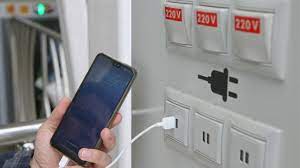
what is Juice Jacking SCAM

  Juice Jacking is a cybersecurity threat that occurs when cybercriminals manipulate public charging stations, such as USB charging ports in...